
Using Video Super Resolution (VSR) in Zoom Player
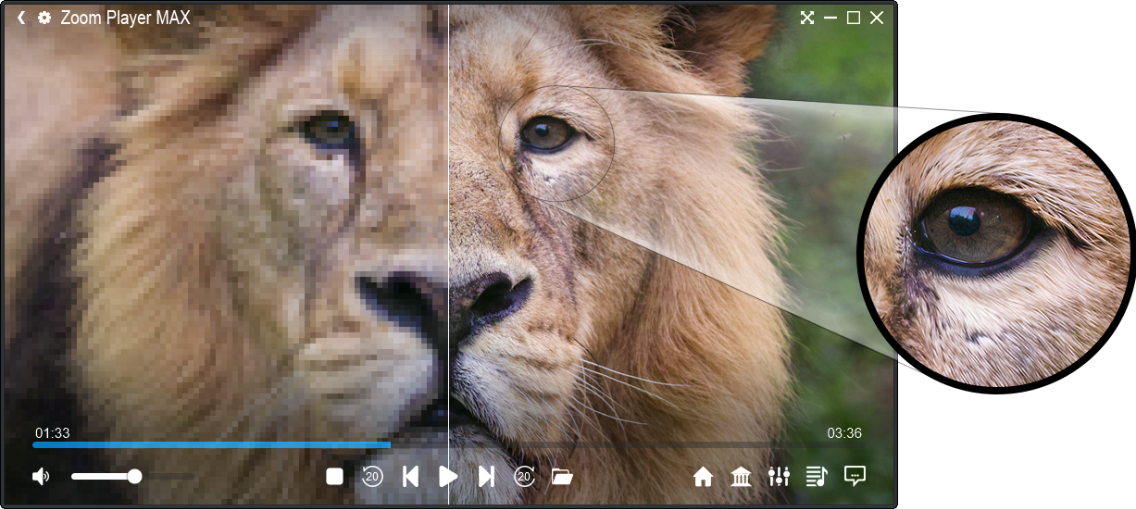
What is Video Super Resolution (VSR)?
Video Super Resolution (VSR) uses supported GPU hardware to upscale and enhance video for higher-resolution displays. Zoom Player supports NVIDIA RTX Video Super Resolution, Intel video super resolution, and AMD Video Upscale.
Improvement is most noticeable with lower-resolution content, such as 480p DVDs, legacy web video, or 720p streams, viewed on a 1440p or 4K monitor.
NVIDIA’s RTX Video Super Resolution requires the 64-bit external media engine introduced in Zoom Player v23. At this time, Intel and AMD work just fine with Zoom Player’s internal engine or the 32-bit external engine.
Required Software
- Zoom Player v23 or newer.
- MPC Video Renderer (MPC-VR), with the version matching your playback engine: 64-bit for NVIDIA, or 32-bit for Intel/AMD with the internal or 32-bit external engine.
Required Hardware
NVIDIA
NVIDIA started supporting VSR in their GeForce RTX 20-series graphics cards (such as the RTX 2060) or newer.
AMD
AMD documents Radeon RX 7000 series desktop GPUs with Adrenalin 24.1.1 or newer as the starting point for Video Upscaling support.
Intel
Compatible integrated graphics in 11th-generation Intel Core processors or newer, or Intel Arc graphics, with an up-to-date driver. Support and available scaling depend on the GPU. Intel UHD 750 has been tested with MPC-VR.
Step 1: Configure Your Graphics Driver
Follow the section for your GPU. NVIDIA and AMD require a driver setting to enable video upscaling. Intel does not require a driver control-panel toggle.
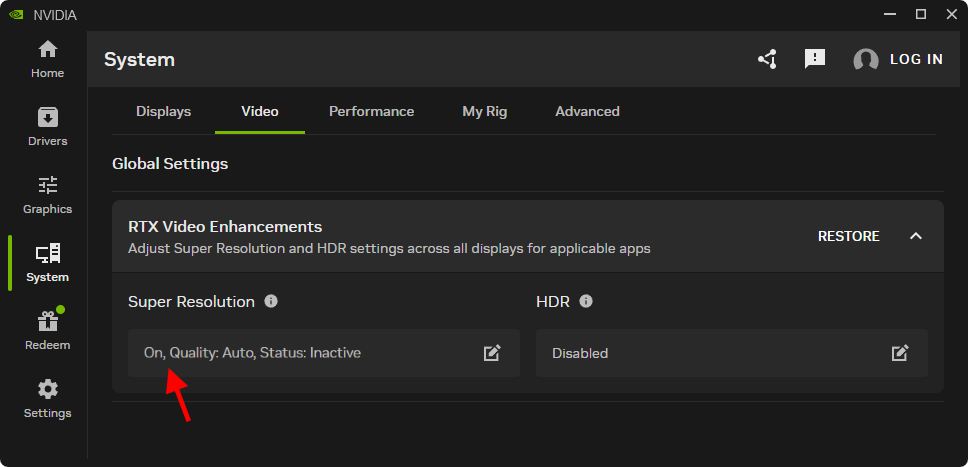
Enable Super Resolution in the NVIDIA App
- Open the NVIDIA App from the Desktop right-click menu or from the system tray.
- Navigate to System > Video.
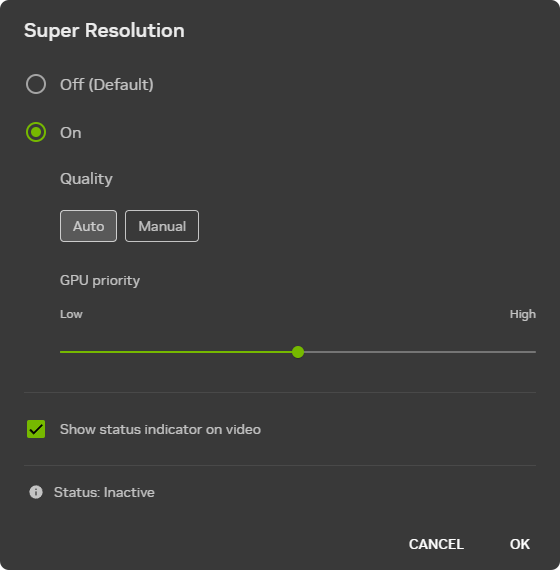
- Under “Super Resolution”, toggle it On (choose your desired quality).
- Optionally, tick “Show Status Indicator on video” to see an on-screen overlay confirming whenever VSR is active during video playback.
Enable Super Resolution in the older NVIDIA Control Panel
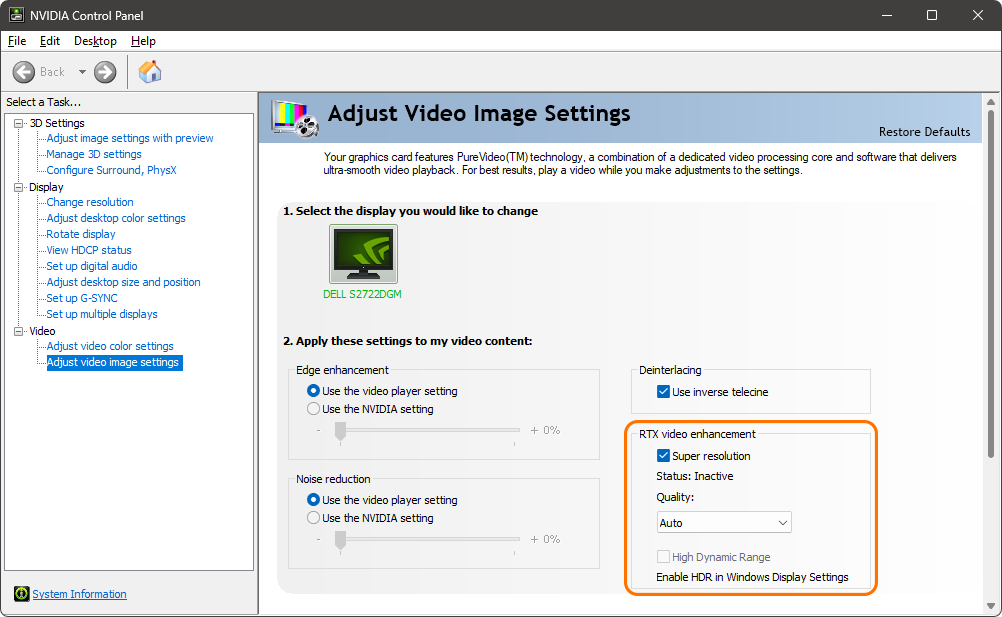
- Open the NVIDIA Control Panel from the Desktop right-click menu or from the system tray.
- Under Video > Adjust video image settings, enable “Super resolution”.
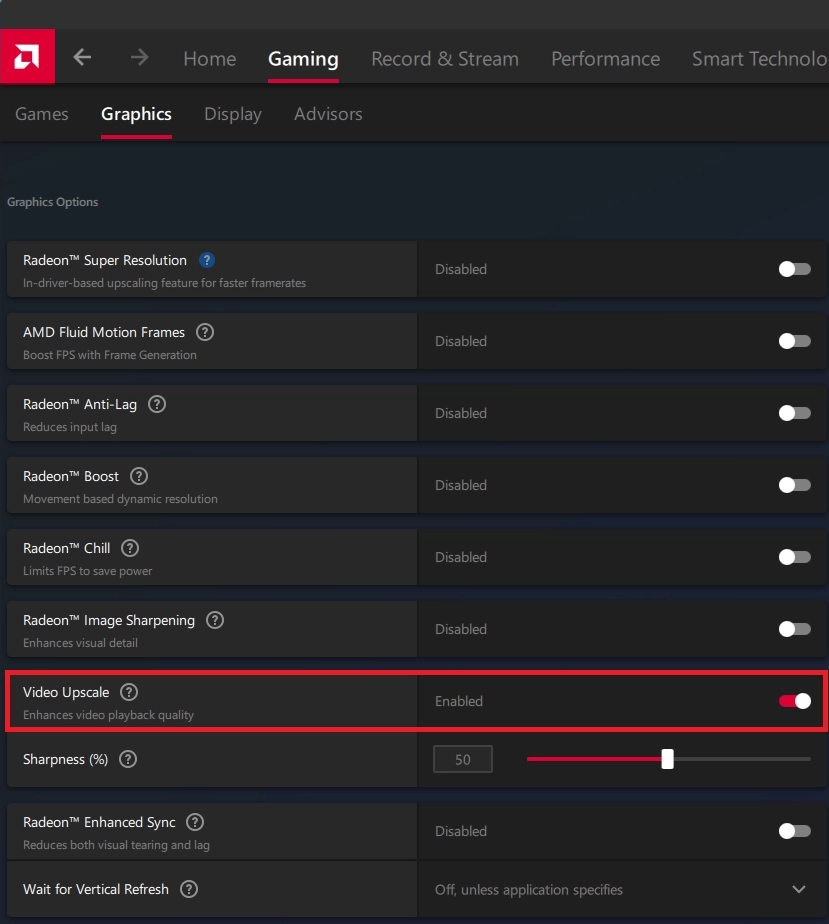
Enable Video Upscale in AMD Software
- Open AMD Software: Adrenalin Edition.
- Navigate to Gaming > Graphics.
- Enable “Video Upscale”. Adjust “Sharpness (%)” to taste (50% in the screenshot is an example).
Use the “Video Upscale” setting shown in the screenshot. Don’t be confused by “Radeon Super Resolution”, which is a separate feature for games and doesn't affect video quality.
Intel Driver Setup
Intel does not require a driver control-panel setting to activate video super resolution. Simply install a driver that supports your GPU and follow the MPC-VR settings in Step 4.
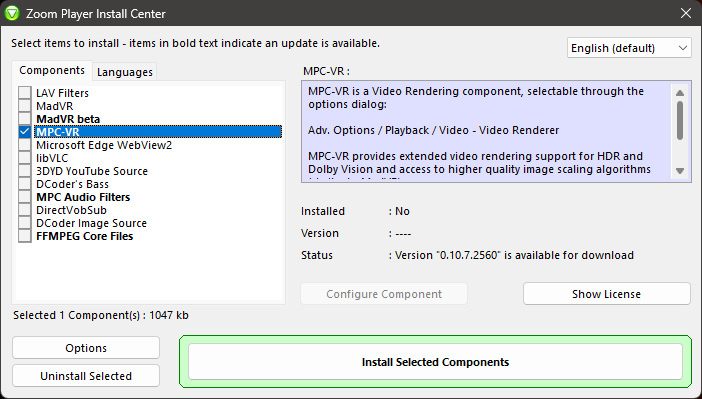
Step 2: Install MPC-VR via Zoom Player Install Center
Install the 64-bit version of MPC-VR for NVIDIA’s RTX VSR. Intel and AMD can use the 32-bit version with Zoom Player’s internal or 32-bit external engine. To install MPC-VR, follow these steps:
- Open the Zoom Player Install Center.
- Select MPC-VR in the components list.
- Click “Install Selected Components”.
Step 3: Choose the Playback Engine for Your GPU
Intel and AMD can use Zoom Player’s internal engine or the 32-bit external engine. Keep the internal engine selected or use the 32-bit option if you prefer external playback and continue to Step 4. The 64-bit setup below is required for NVIDIA’s RTX VSR.
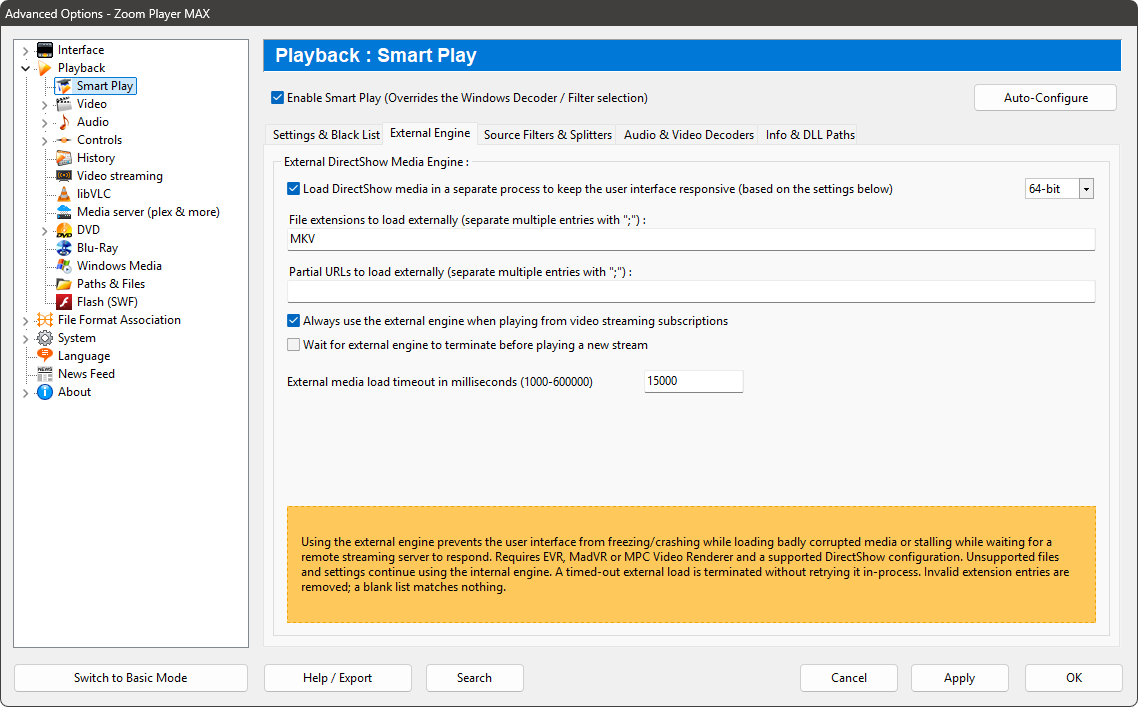
NVIDIA: Enable the 64-Bit External Engine
- Open Zoom Player and press Ctrl+O to open Advanced Options (if you’re in basic options, click the button in the bottom-left corner to switch to Advanced mode).
- Go to Playback > Smart Play.
- Under the External Engine sub-page, enable “Load DirectShow media in a separate process to keep the user interface responsive” and select 64-bit.
- In the “File extensions to load externally” field, type the extensions you want to load externally (e.g., “MKV, MP4”).
Step 4: Verify Video Renderer Settings (MPC-VR)
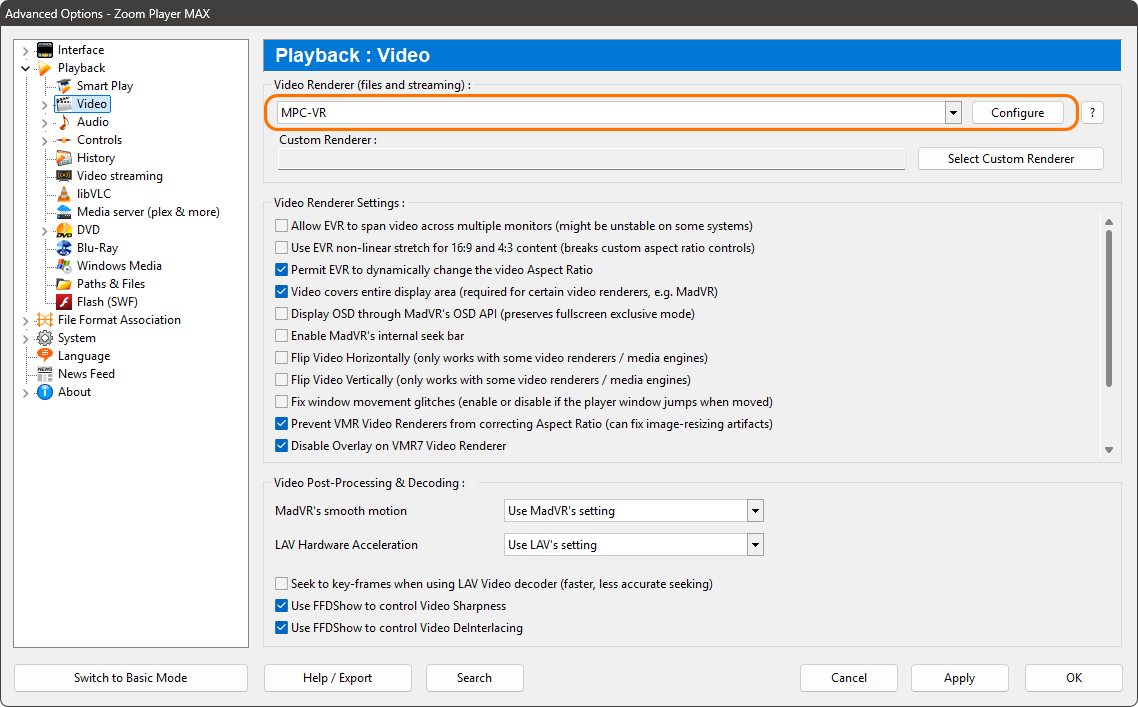
Zoom Player automatically prioritizes MPC-VR when present. Check the renderer and choose the settings for your GPU:
- In Zoom Player's Advanced Options, navigate to Playback > Video.
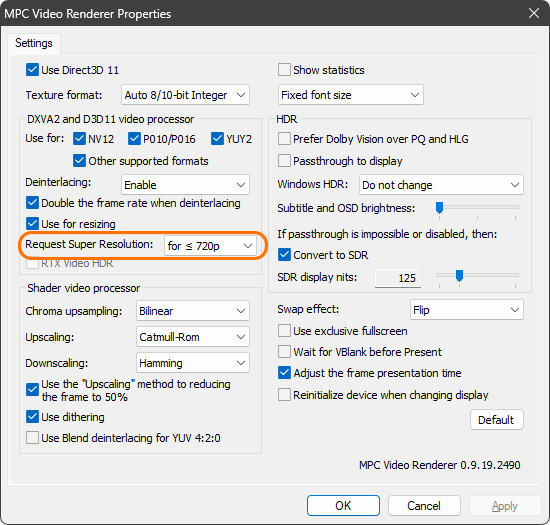
- In the MPC Video Renderer settings window, enable “Use Direct3D 11” and “Use for resizing” in the video-processor section. Set “Request Super Resolution” to include the resolution of videos you’d like to use VSR with (for example, “for ≤ 720p”).
Step 5: Test Playback and Verify VSR is Active
Play a lower-resolution video, such as 480p or 720p, and enlarge it on a higher-resolution display. Keep the same scene and playback size when comparing the result.
NVIDIA
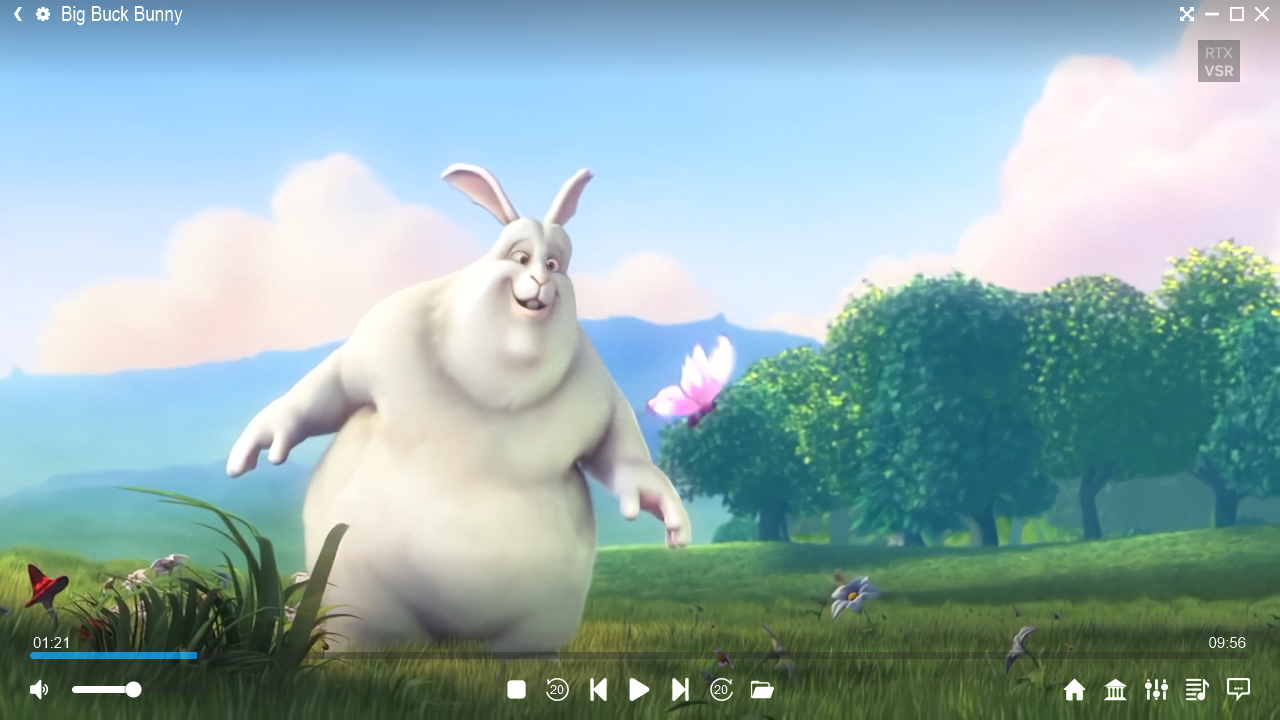
If you enabled the status indicator, you should see the “RTX VSR” icon appear on the top right when starting to play a supported video (see screenshot below).
Conclusion
If you’re an owner of a DVD collection or have collected many hours of home video, Video Super Resolution support in Zoom Player can bring new life to your old footage.