
AI Subtitle Creator user guide
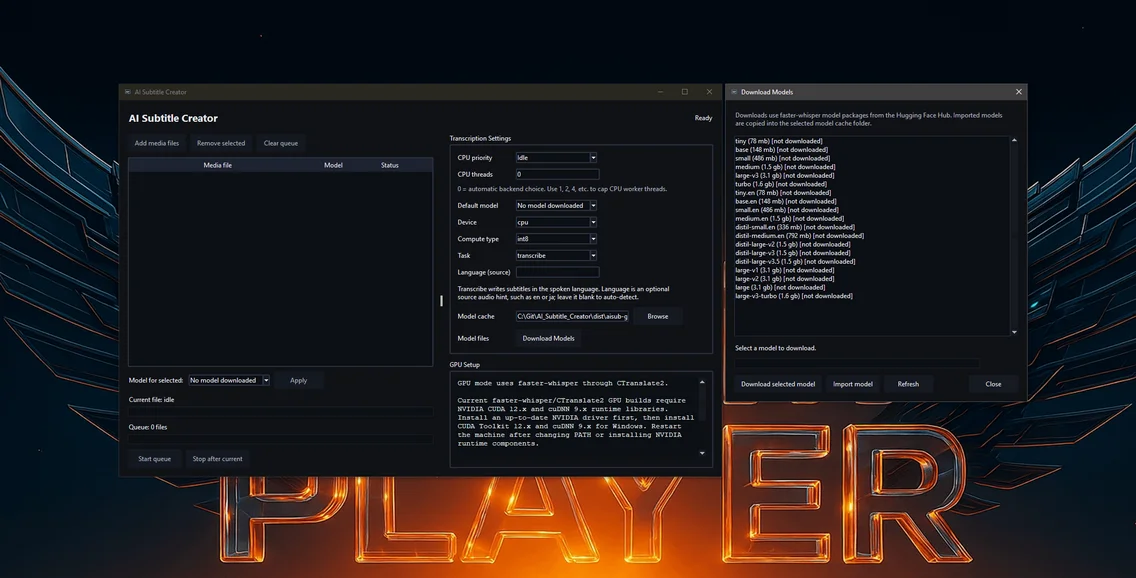
AI Subtitle Creator is an open-source application used to create subtitle files for local media or audio files. It works by transcribing the audio track using a speech to text AI conversion model running locally on your PC's CPU or GPU to create ".srt" subtitle files with maximum privacy (everything runs locally).
What you need before starting
- A local media file, such as ".mp4" or ".mkv".
- At least one downloaded or imported AI model (AI Subtitle Creator can download models for you).
- For CPU use, no special graphics hardware is required.
- For GPU use, you need a supported NVIDIA GPU and the required NVIDIA driver, CUDA, and cuDNN runtime files.
Main Window
The main window is used to queue media files, choose models, change transcription settings, and start subtitle creation.
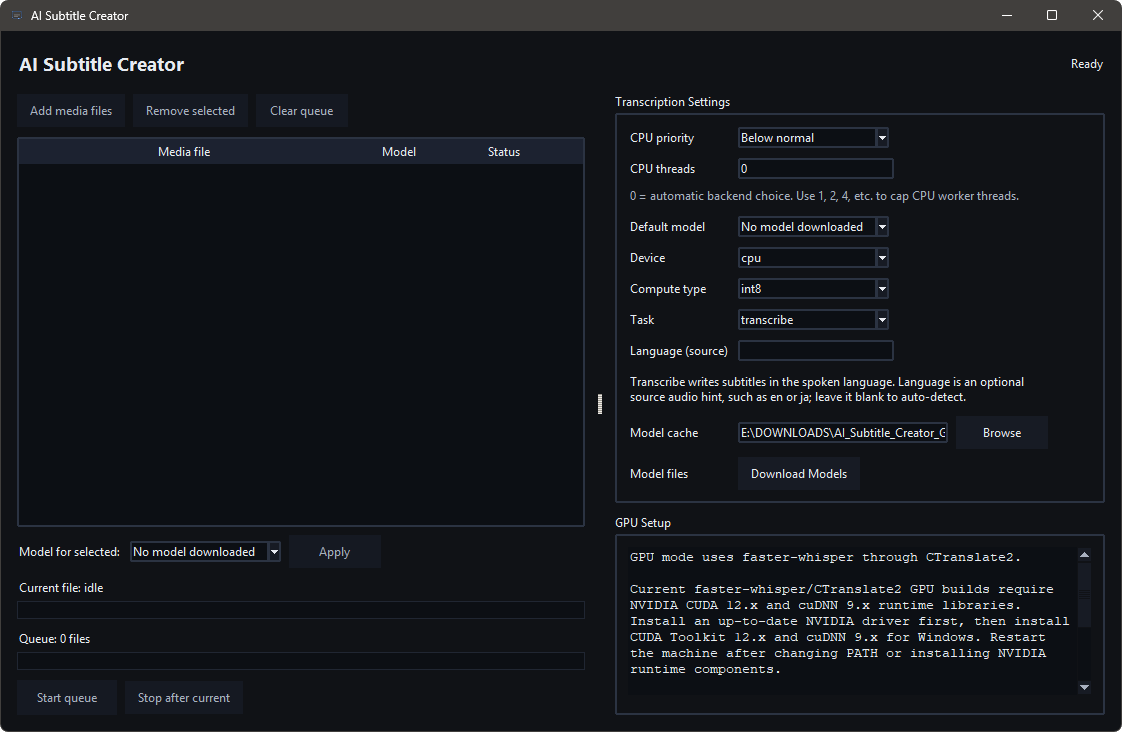
Add Media Files
Click Add media files to choose one or more media files. This button is disabled until at least one local model is available.
Queue Table
The queue table shows each file that will be processed.
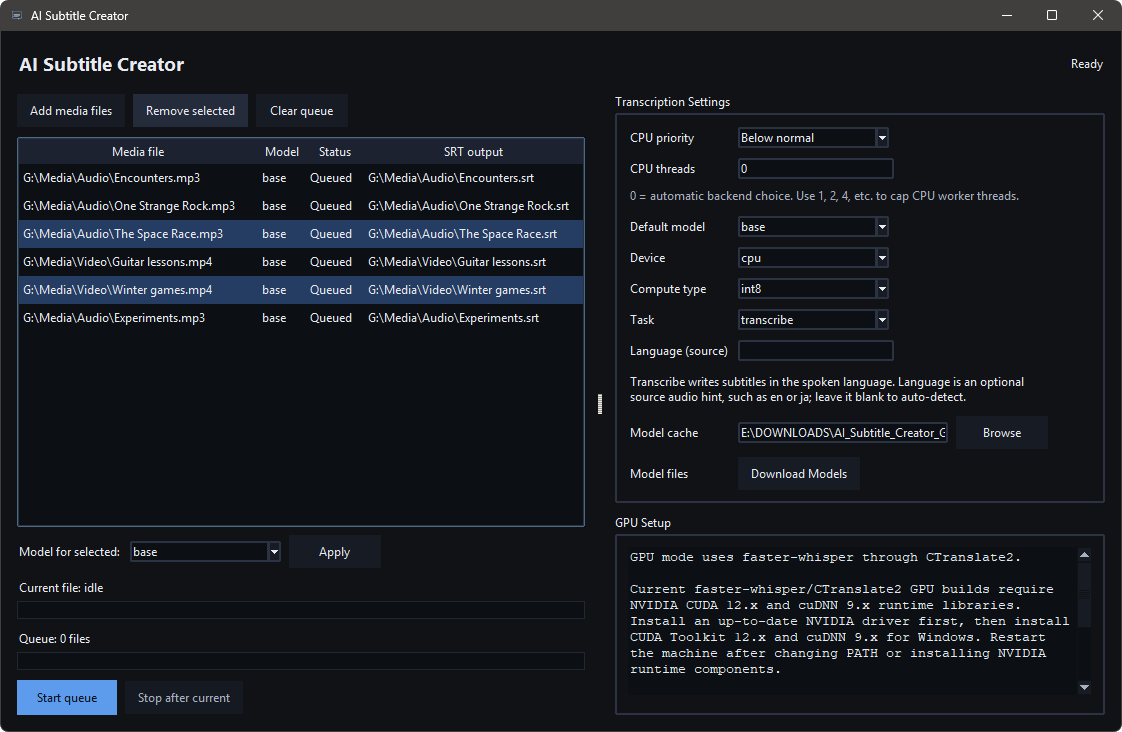
- Media file: the file that will be transcribed.
- Model: the AI model selected for that file.
- Status: the current state, such as queued, running, done, or failed.
- SRT output: the subtitle file that will be created.
Remove Selected
Select one or more rows in the queue and click Remove selected to remove them from the queue.
Clear Queue
Click Clear queue to remove all queued files.
Model For Selected
Select one or more queued files, choose a model from Model for selected, and click Apply. Each queued file can use a different model.
Current File Progress
The first progress bar shows the file currently being processed. The label also shows the current percent.
Queue Progress
The second progress bar shows progress for the whole queue.
Start Queue
Click Start queue to begin creating subtitles. The button is disabled if the queue is empty or if any queued file has no local model selected.
Stop After Current
Click Stop after current to stop after the file currently being processed is finished. It does not stop in the middle of that file.
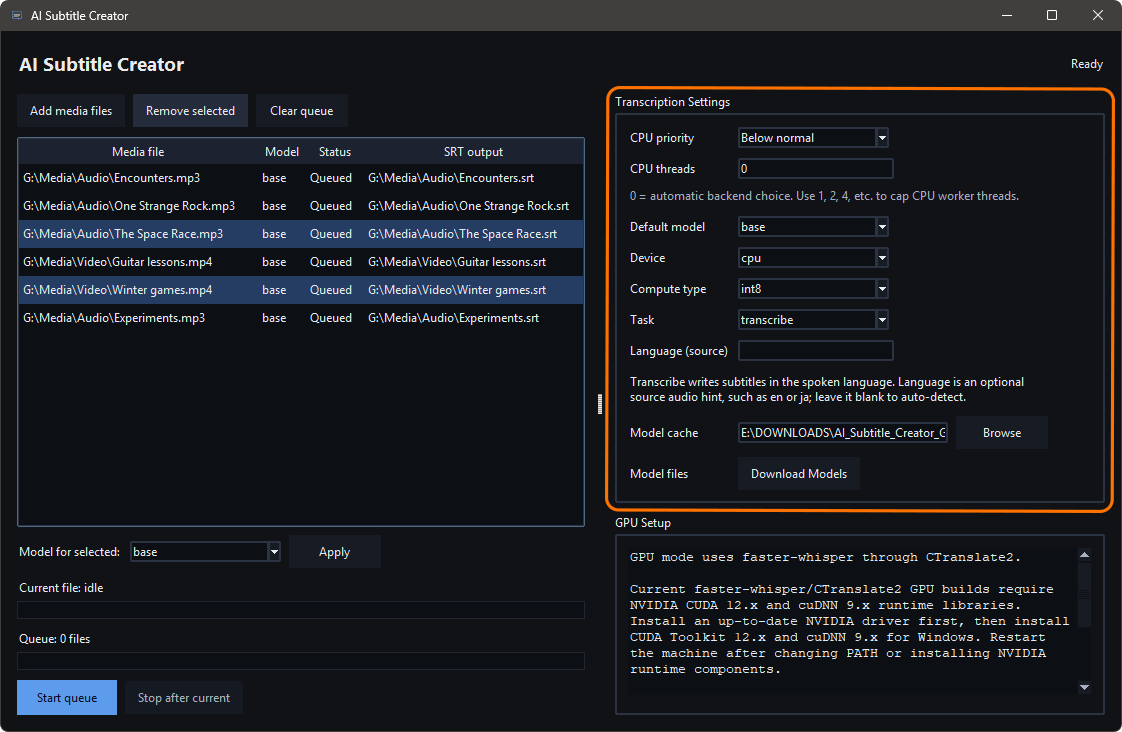
Transcription Settings
CPU Priority
CPU priority controls how much attention Windows gives this app compared with other running programs.
- Idle: lowest impact on the computer.
- Below normal: reduced impact.
- Normal: regular Windows priority.
- Above normal: more CPU attention than usual.
- High: high CPU attention. Use only if you understand the effect.
CPU Threads
CPU threads controls how many CPU worker threads the AI model may use. Use 0 to let the backend choose automatically. A smaller number can make the computer easier to use while subtitles are being created.
Default Model
The default model is used for new files added to the queue. Only models available locally are shown.
Device
Device chooses where the AI model runs.
- auto: let the backend choose.
- cpu: run on the processor. This is the most compatible option.
- cuda: run on a supported NVIDIA GPU.
Compute Type
Compute type controls the number format used by the model. Smaller formats can use less memory and may run faster.
- default: let the backend choose.
- int8: good for CPU use and lower memory use.
- float16: common for GPU use.
- int8_float16: mixed mode often used with GPU.
Task
Task controls what the model should do with the speech.
- transcribe: write subtitles in the same language as the speech.
- translate: translate supported non-English speech into English subtitles.
Language Source
Language is an optional hint for the spoken language in the audio. Use short language codes such as en, es, fr, or ja. Leave it blank to let the model try to detect the language.
When task is translate, the language field still means the source audio language, not the output language. The output is English.
Model Cache
Model cache is the folder where downloaded and imported models are stored. Use Browse to choose a different folder.
Download Models
Click Download Models to open the model window.
Download Models Window
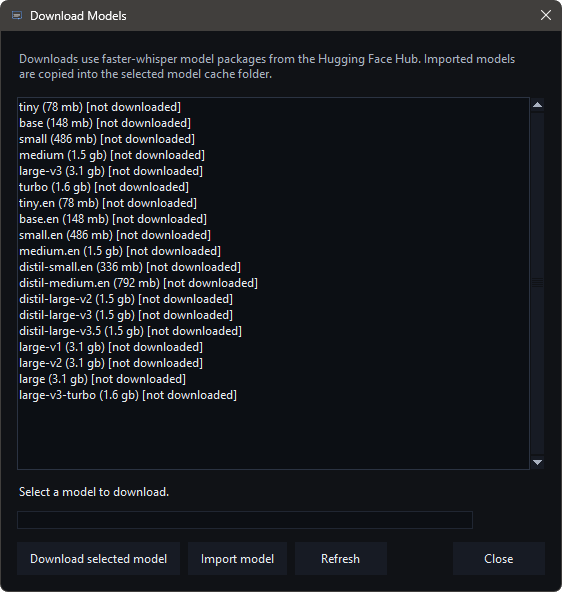
Model List
The list shows models that can be downloaded. A model may show its size when the size is known. The list also shows whether each model is already cached.
Download Selected Model
Select a model and click Download selected model. The download uses faster-whisper model packages from the Hugging Face Hub. Downloaded models are stored in the selected model cache folder.
Download Progress
The download progress bar and percent text show download progress when the total size is known.
Import Model
Click Import model to select a local model file. The app copies the model into the selected model cache folder and lists it as a local model.
Refresh
Click Refresh to update the model list and local model status.
GPU Setup
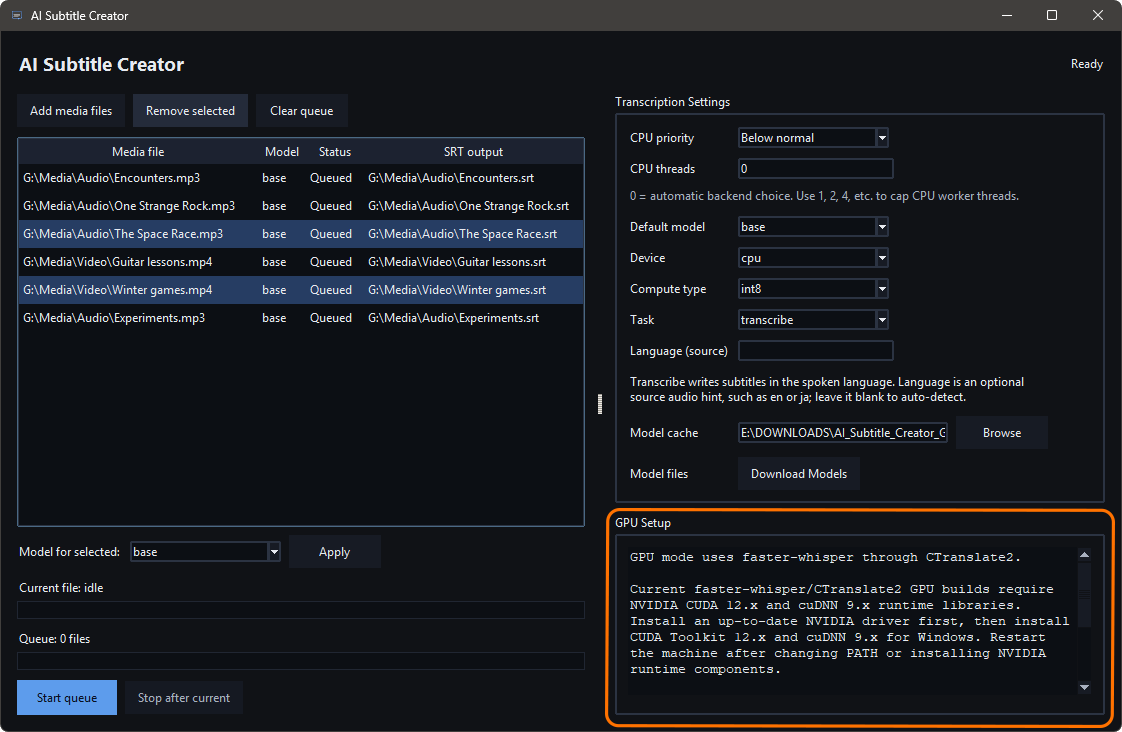
GPU mode uses faster-whisper through CTranslate2. It can be faster than CPU mode, but it needs compatible NVIDIA runtime files.
- Check GPU runtime: checks whether the needed GPU runtime appears to be available.
- NVIDIA driver: opens the NVIDIA driver download page.
- CUDA Toolkit: opens the CUDA Toolkit download page.
- cuDNN: opens the cuDNN download page.
Output Files
The app creates ".srt" subtitle files. In the GUI, each output path is shown in the queue. By default, the subtitle file uses the same name as the media file but with the .srt extension.
Downloading the latest version
Download the latest AI Subtitle Creator on its GitHub release page.