Play Podcasts or Audio books faster using Zoom Player
What makes Zoom Player great for listening to Podcasts and Audio books?
Zoom Player isn't just a video player, it's one of the most configurable media players available. With the right setup, you can:
- Play audio at faster speeds (1.25x, 1.5x, 2x, or more).
- Maintain natural voice pitch.
- Handle a wide variety of audio formats.
- Switch playback engines depending on quality or compatibility needs.
If you're catching up on a lengthy history podcast or trying to get through a 20-hour Audio book, listening at a faster pace can be a massive time-saver. However, simply "speeding up" audio often results in annoying "chipmunks", where voices become high-pitched and unintelligible as they are sped up.
Zoom Player offers a solution to handle this professionally, allowing for clear, pitch-corrected audio even when playing at higher speeds. Here is how to set it up.
Eliminate "Chipmunk Voices" using MPC-Audio Renderer
Verify MPC-Audio Renderer is installed
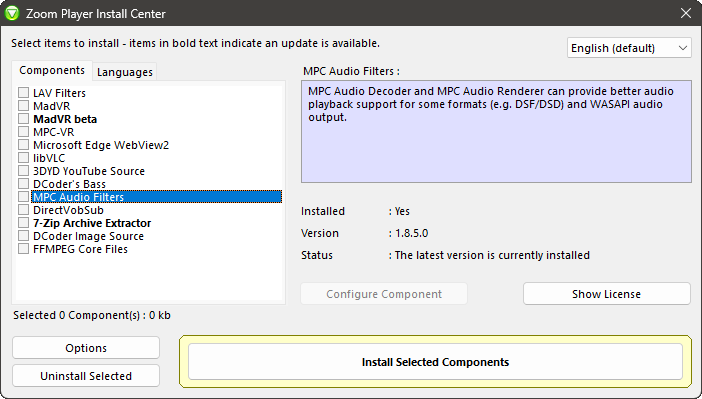
If you've performed a standard Zoom Player install then MPC-Audio renderer should already be installed. If for some reason this is not the case, you can run Zoom Player's install center application to download the latest version:
Setting up the MPC-Audio Renderer
By default, Microsoft's standard audio renderers change the pitch of the audio when you increase the play speed. To keep voices sounding natural while playing faster, switch to an audio renderer that supports play-rate pitch correction.
- Run Zoom Player and press Ctrl+"O" to open the Options dialog or use the right-click menu to access it.
Switch to the "Advanced options" dialog as-needed using the button in the bottom left-corner.
- Navigate to "Playback / Audio" section on the left panel and within the Audio Renderer section, pick the "MPC Audio Renderer".
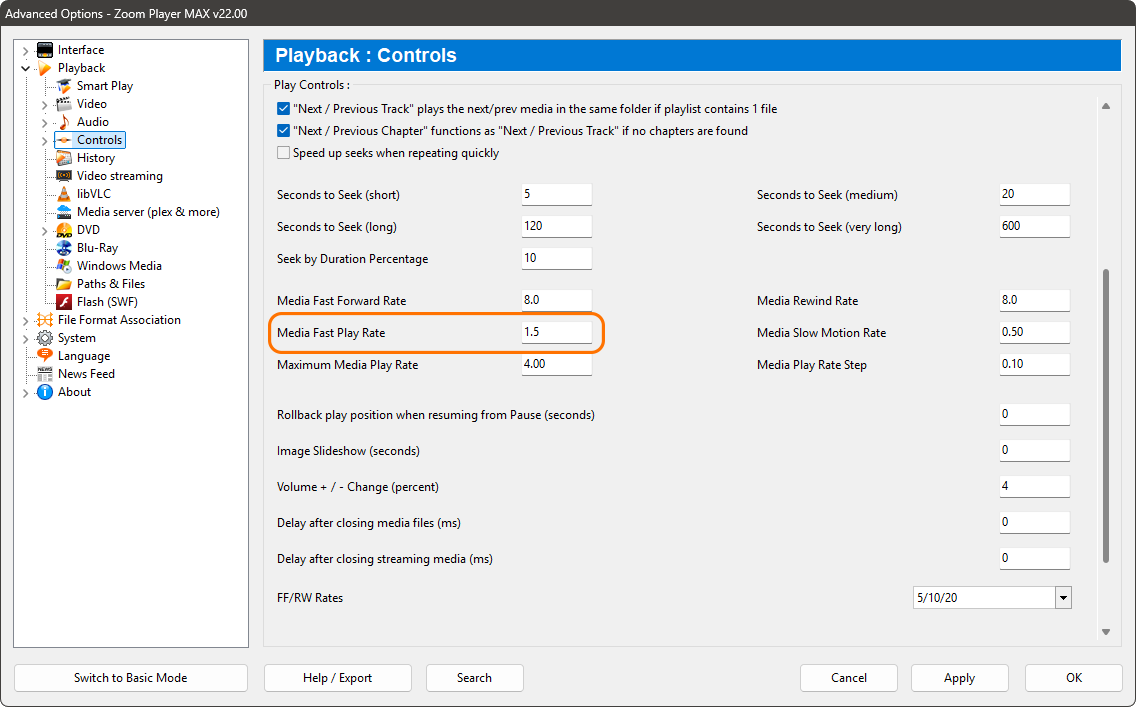
- Set the Fast Play rate under "Interface / Playback / Controls". The default value as of Zoom Player version 22 is "1.5" which translates to 150% faster playback.
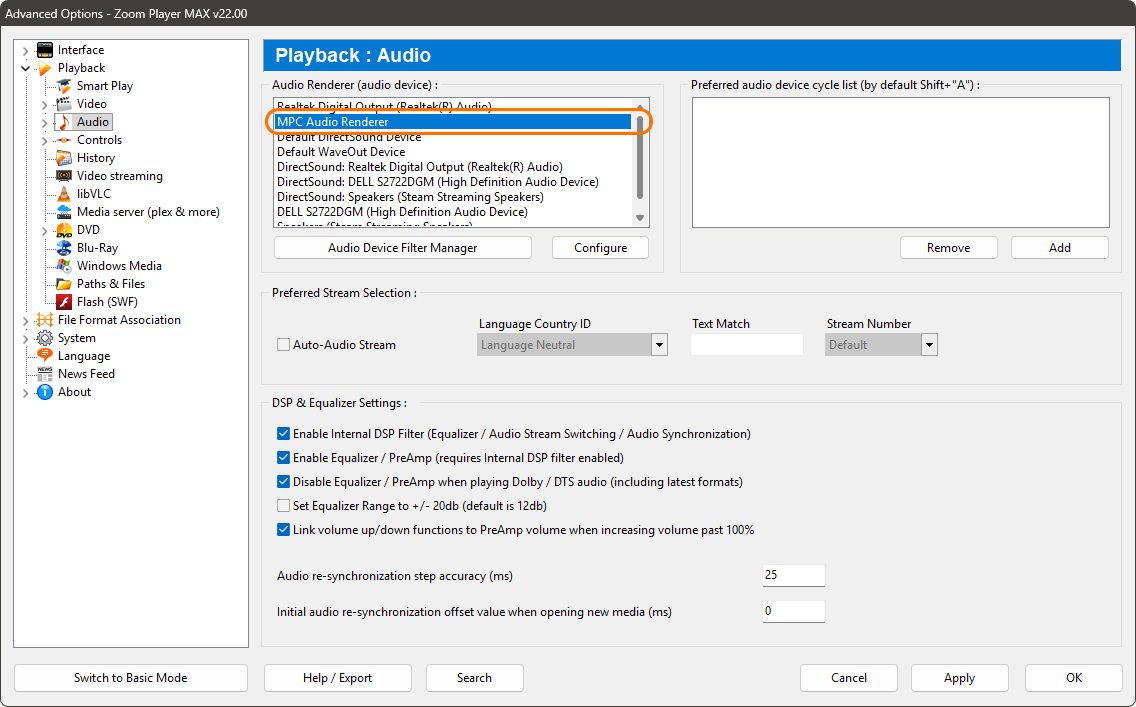
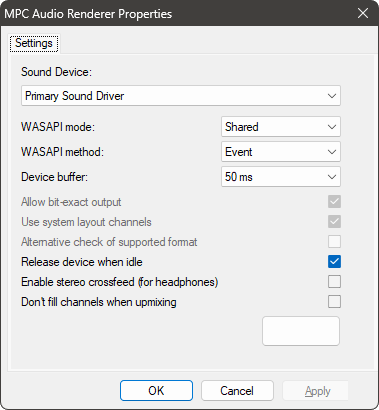
Optionally (not required), you can configure MPC Audio Renderer's advanced settings by clicking the "Configure" button.
Using the libVLC media engine to support more formats
While Zoom Player's default DirectShow engine provides the highest possible audio and video quality, it doesn't support Fast Play with every media format. If you find that a specific Podcast or Audio book format is not playing fast as expected, switching to the libVLC media engine can provide a work-around.
To enable libVLC, in Zoom Player's Options dialog, navigate to the "Playback / libVLC" section on the left panel. Here, you can enable the libVLC engine and specify which media formats should use it.
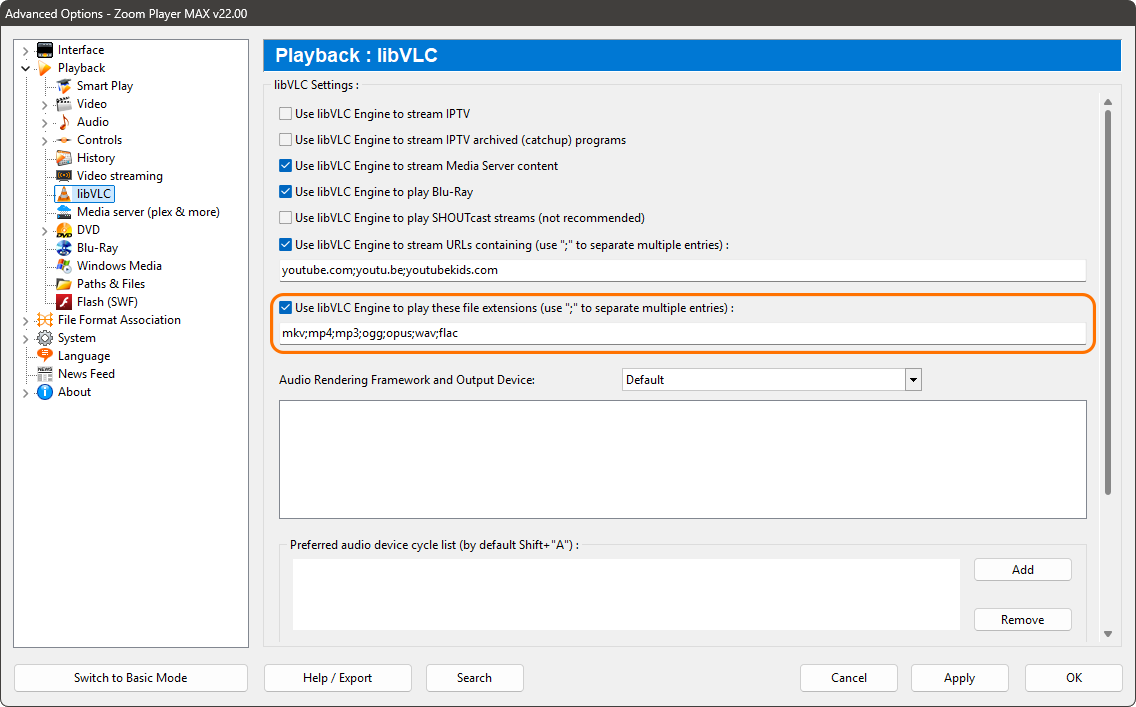
To force specific formats to use the libVLC engine, add their extensions to the "Use libVLC Engine to play these file extensions" box.
Example: m4a;m4b;mp3;ogg;opus;wav;flac
By separating file extensions with semicolons, Zoom Player will automatically use the VLC engine for such files, ensuring the "Fast Play" works every time.
libVLC is installed by default, however if you did not choose to install it initially, you can do so using Zoom Player's install center with the same procedure as the "MPC Audio Renderer" installation discussed earlier.
Enabling fast play
There are at multiple ways to toggle fast play in Zoom Player, here are the two simplest:
Keyboard Shortcut
The Ctrl+"Z" keyboard shortcuts toggles fast play on/off
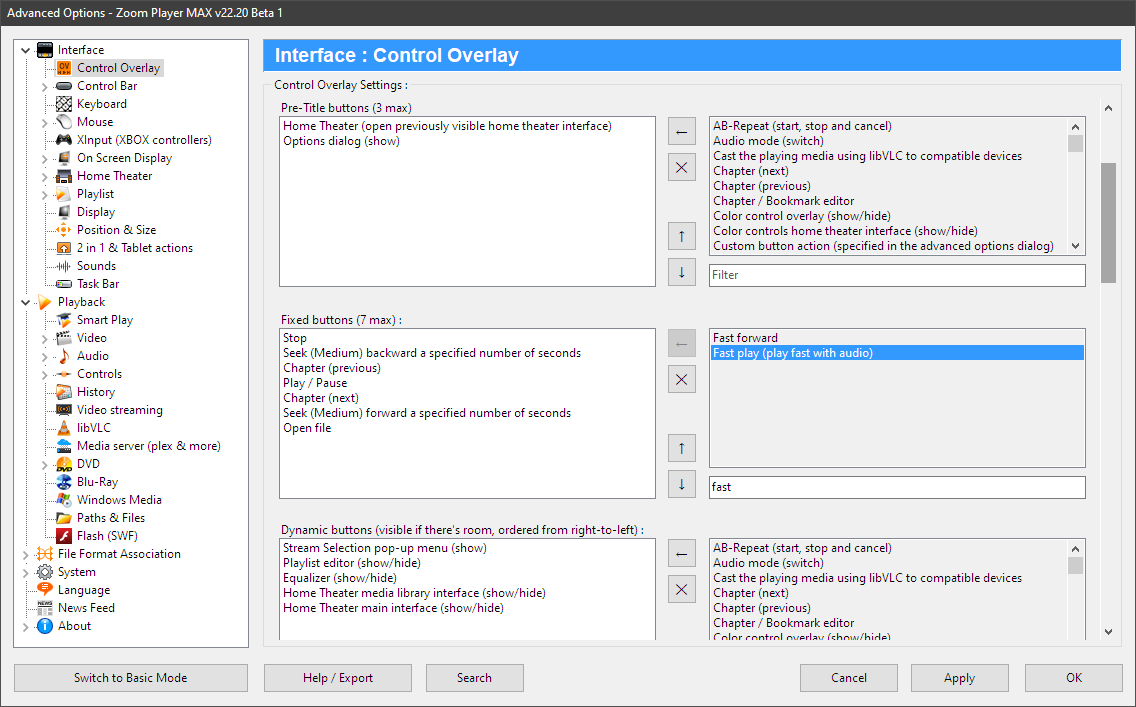
Fast play button on the Control Overlay
You can configure Zoom Player's Control Overlay (Advanced Options / Interface / Control Overlay) to show a "Fast Play" button in any of the control overlay's 4 button screen-zones: