
How to setup ZP Remote Neo
The Total Remote Control Experience
I designed ZP Remote Neo to give you seamless, wireless control over Zoom Player from Androids device or other Windows PCs.
Here's a quick summary of the powerful features available in ZP Remote Neo that go beyond basic playback control:
Multi-PC Control
Control and quickly switch between multiple PCs running Zoom Player.
Customizable Layouts
Create a perfectly tailored interface with a fully customizable button layout, including adjustable positions, sizes, background shapes, colors and spacing.
Playlist Access
Navigate your playlist tracks from ZP Remote Neo's playlist feature.
Function Integration
Access hundreds of Zoom Player Standard, Extended and Navigation functions.
Virtual Mouse Trackpad
Turn your mobile screen into a virtual track-pad to control the remote PC's mouse cursor.
Share from other apps
Share streams from other apps (e.g. YouTube).
Private & Open-Source
No Telemetry, No Ads, 100% Private and you're free to review the code for yourself.
Free
Freely available to enhance Zoom Player's viewing experience.
Getting Started with ZP Remote Neo
ZP Remote Neo offers a highly customizable interface that fits your specific workflow. In this guide, I'll show you how to link ZP Remote Neo to Zoom Player and how to customize the button layout for any screen size.
Step 1: Enabling the External TCP/IP Control in Zoom Player
Before ZP Remote Neo can talk to Zoom Player, you must "open the door" within Zoom Player's Advanced Options.
- Open Zoom Player and Press "Ctrl+O" to enter the Options dialog and ensure Advanced Options is enabled (switch to Advanced Options as-needed using the button on the bottom-left window corner).
- Navigate to System on the left-hand panel.
- Check the box "Enable External TCP/IP Control (port)" and note the port number (default is 32999). You will need to enter the port number into ZP Remote Neo's connection profile.
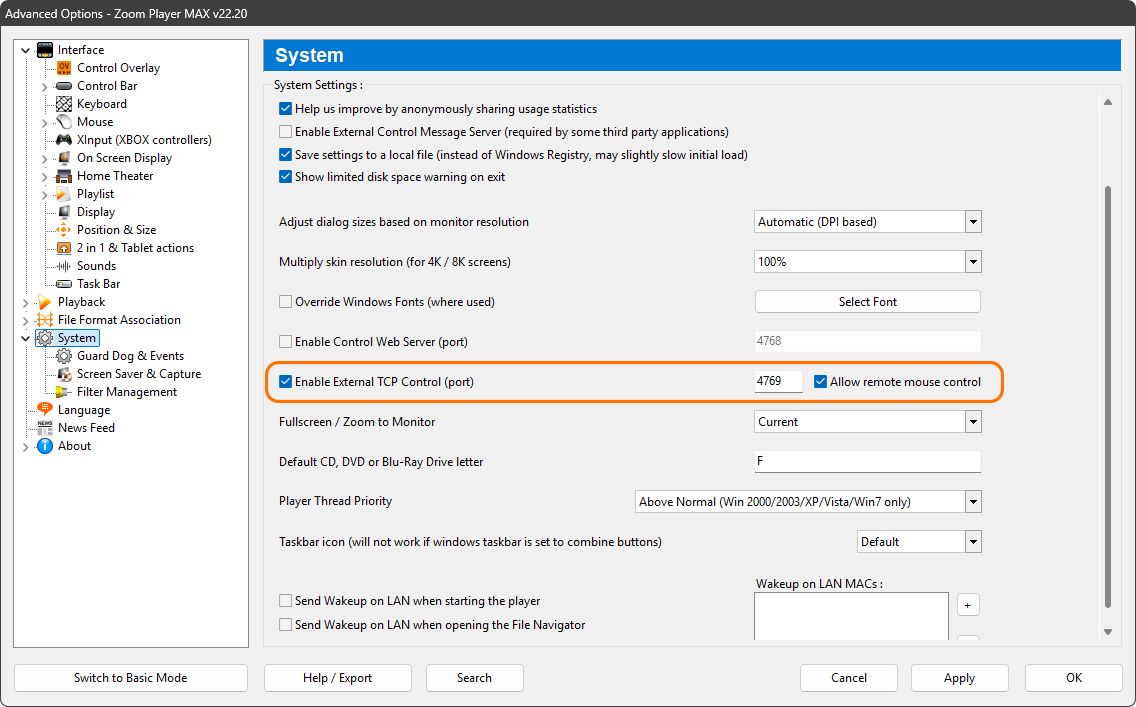
You can also enable the "Allow remote mouse control" setting if you want to use ZP Remote Neo's virtual mouse trackpad feature, but note that for security reasons (communication is not encrypted), it's best only to enable remote mouse control on local networks.
Step 2: Connecting the ZP Remote Neo App
Now that your PC is waiting for ZP Remote Neo to connection, it's time to set up your connection profile in ZP Remote Neo itself.
- Open ZP Remote Neo on your mobile device.
- Go to Settings by hitting the cog wheel icon in the top right corner.
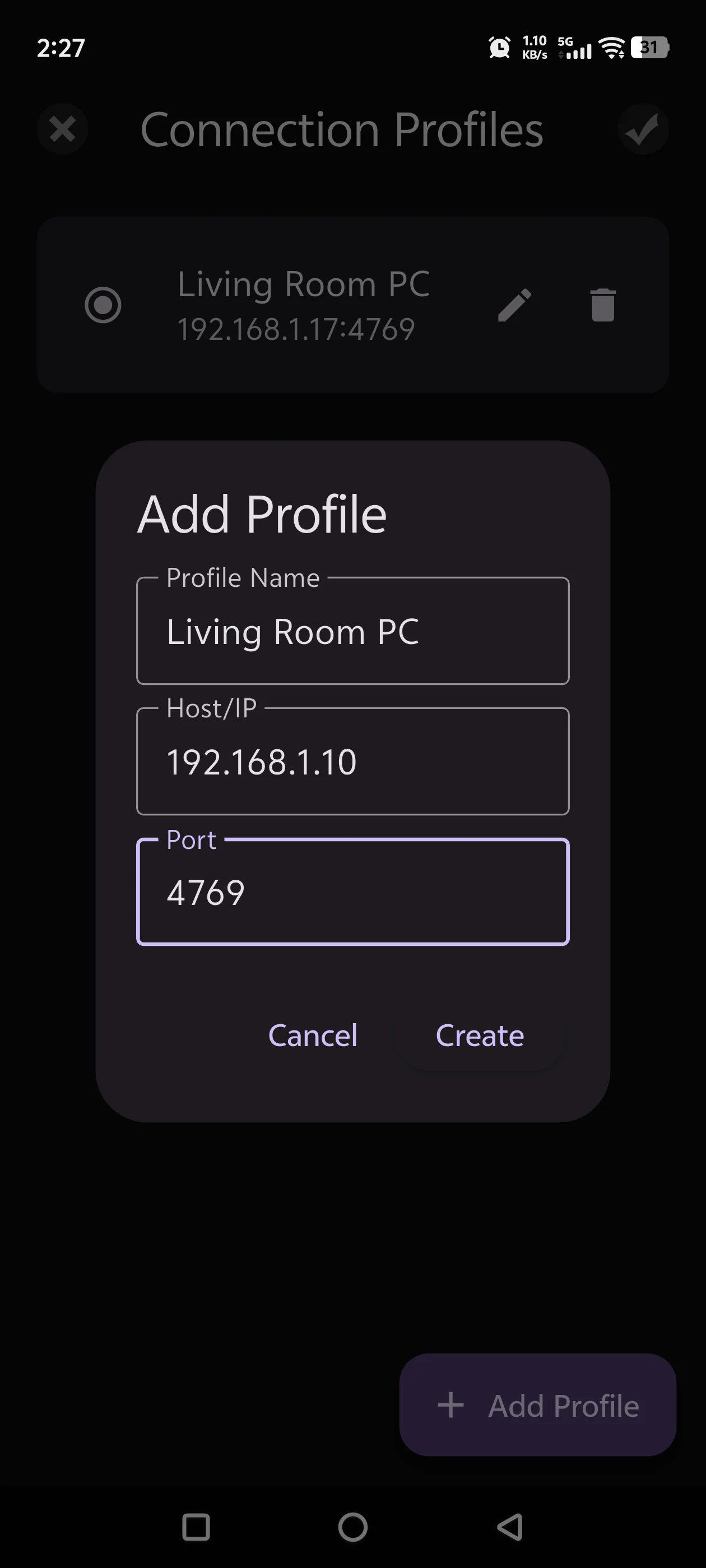
- Go to "Connection Profiles" and either use the "Add Profile" button to create a new Connection Profile or edit the sample connection profile.
- Choose a profile name (e.g., "Living Room PC") and enter the IP Address and Port of the PC running Zoom Player from Step 1.
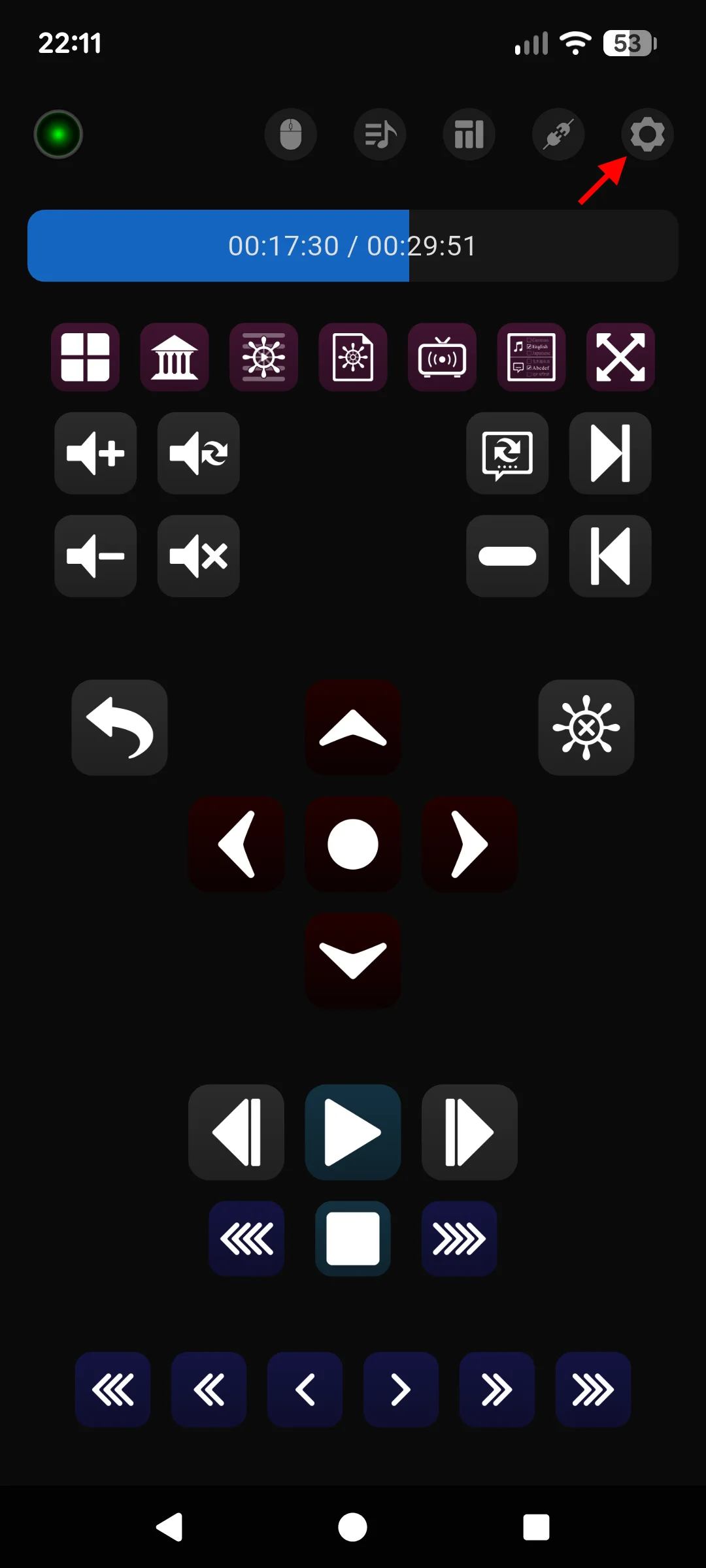
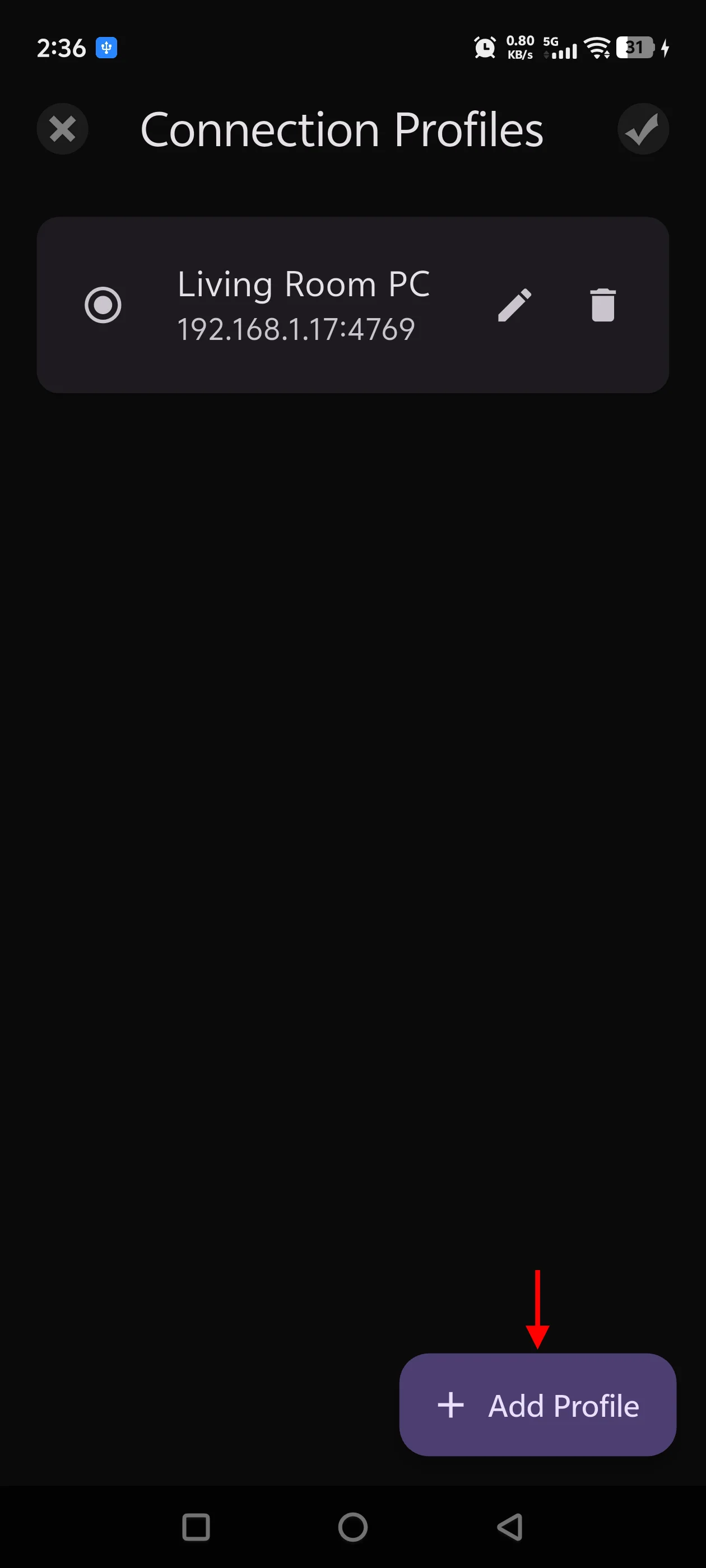
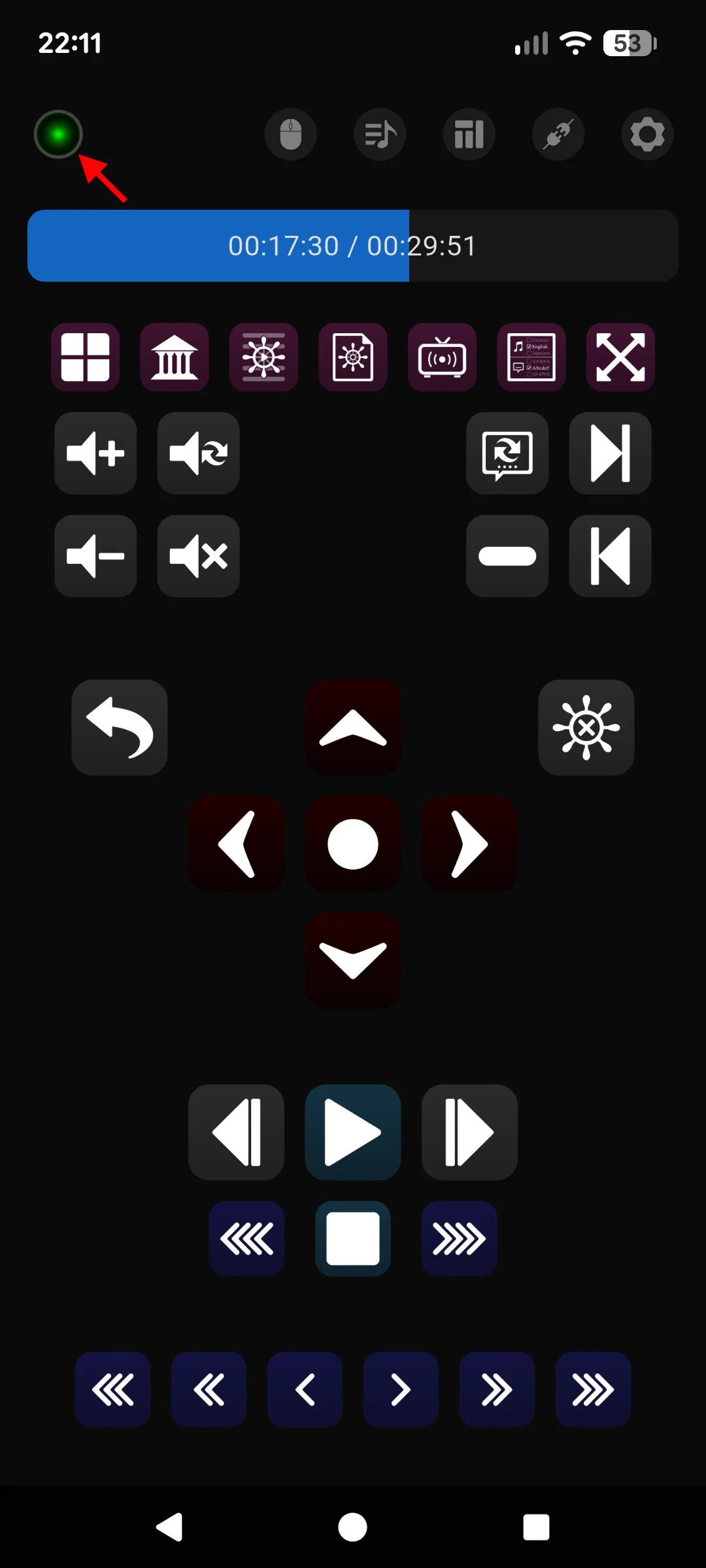
ZP Remote Neo will try to connect to the profile you created. If the connection is successful you will see a green indicator in the top left corner of the app or an error message in the seek bar area.
The Button Layout
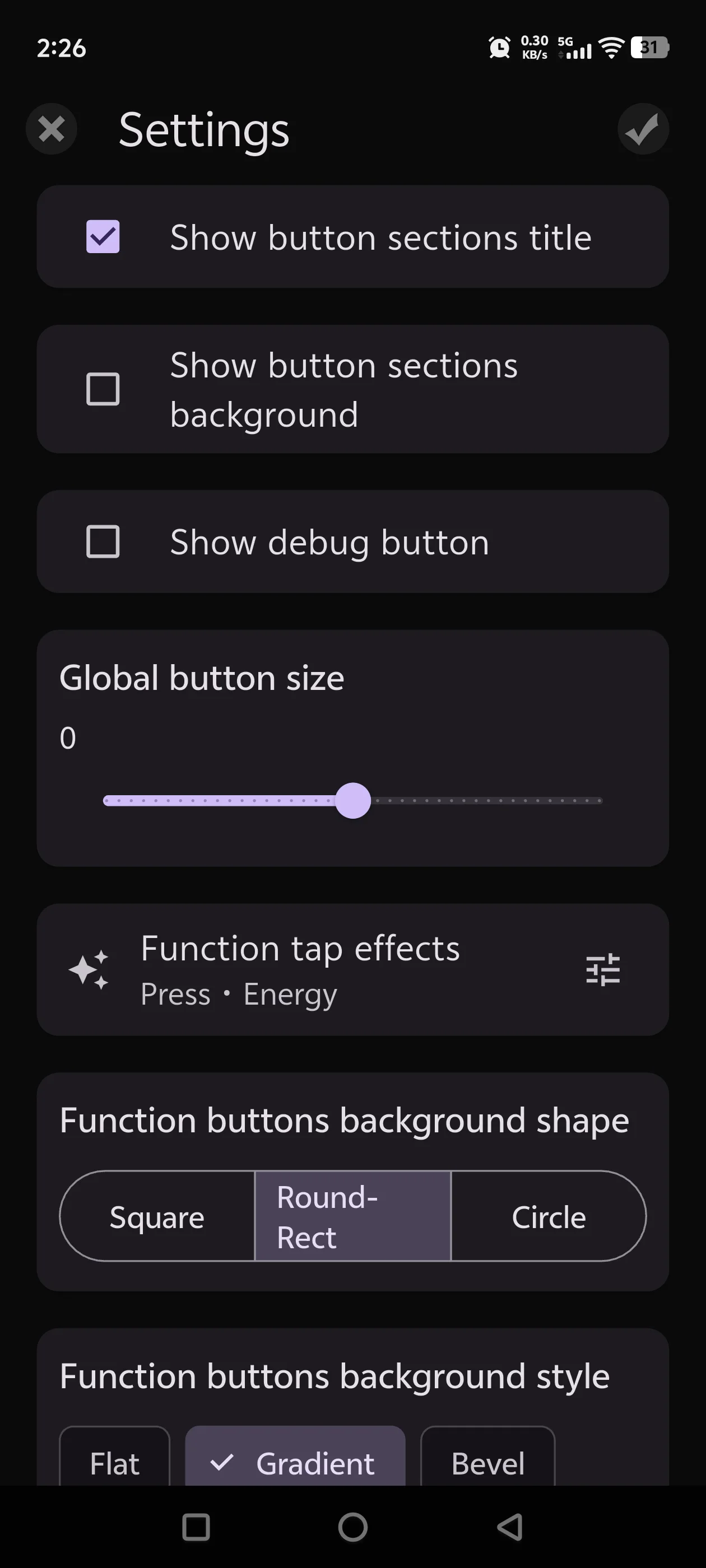
One of the most powerful features of Remote Neo is its flexible layout system. Since devices range from small phones to large tablets, you'll want to adjust the global button sizing first to ensure the that every button remains accessible.
Adjusting Global Button Size
Before moving individual buttons, start with the Global Button Size option in the Settings section. This acts as a master scale, adjusting the relative button size to perfectly fit within your display.
The Layout Editor
The Layout Editor is where you personalize ZP Remote Neo's Zoom Player function button layout to your specific needs.
The Layout Editor is built using a flexible row system where you can:
- Drag and Drop: Simply grab a row to change its vertical order, moving your most critical controls within easy thumb-reach.
- Configure Rows: Tap any row to edit its section name, choose which Zoom Player function buttons are visible or assign custom background colors.
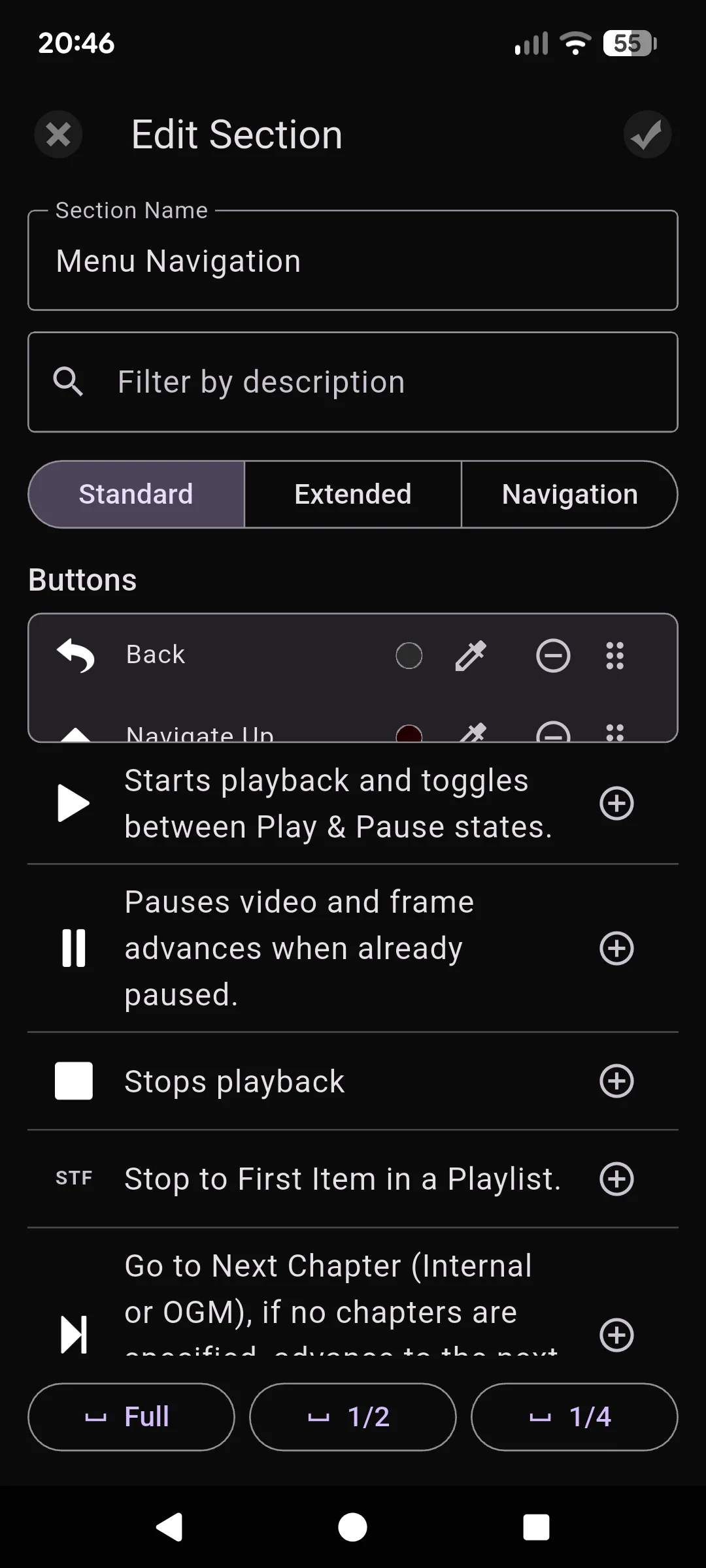
- Diverse Functions: Choose between Zoom Player's standard functions, navigation controls or extended functions that allow for specific parameters, for example a button dedicated to seeking exactly 7 seconds ahead.
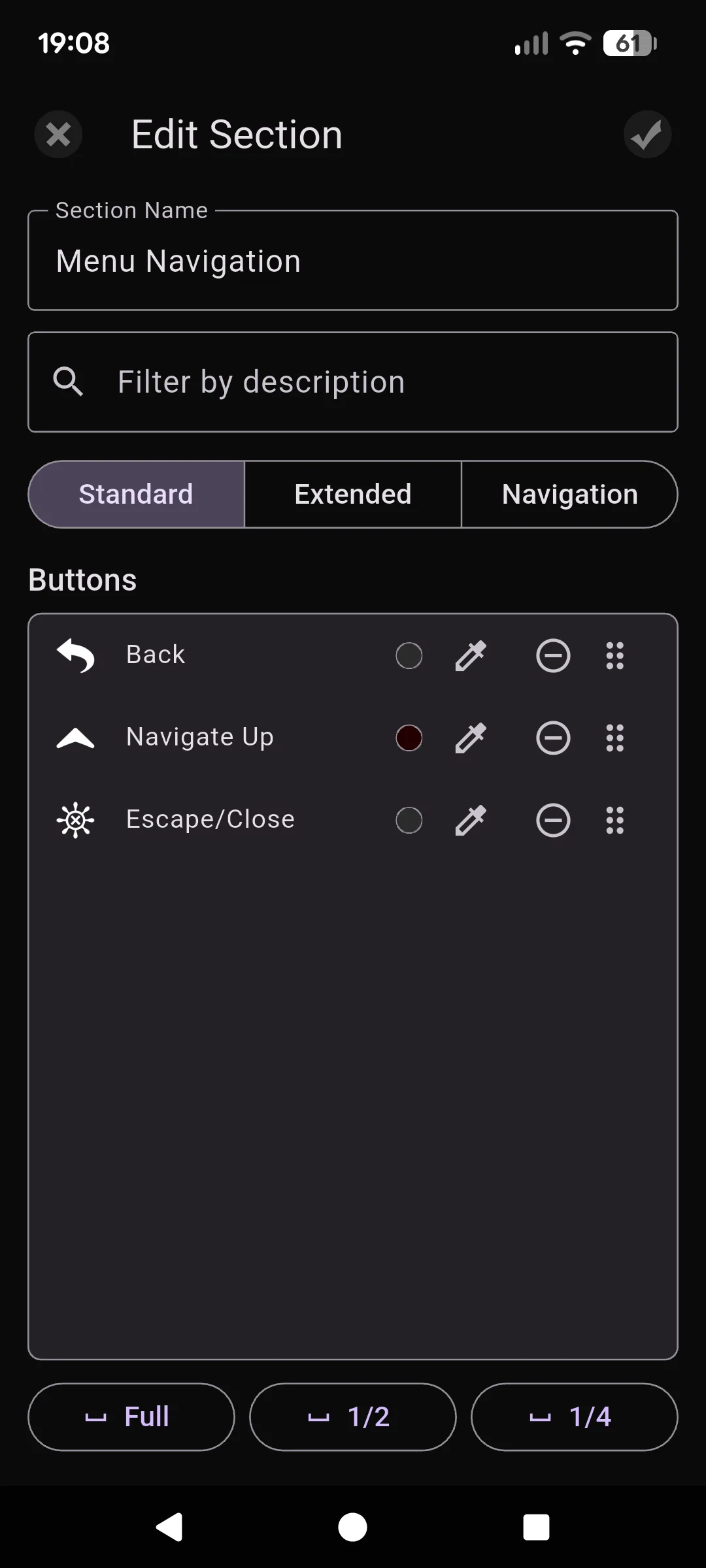
- Spacers & Titles: Use button spacers to create intentional gaps between buttons for a cleaner look and enable section titles to keep your groups (like "Volume" or "Playlist") organized.
To access the layout editor, simply tap the Layout Editor button in the top bar area.
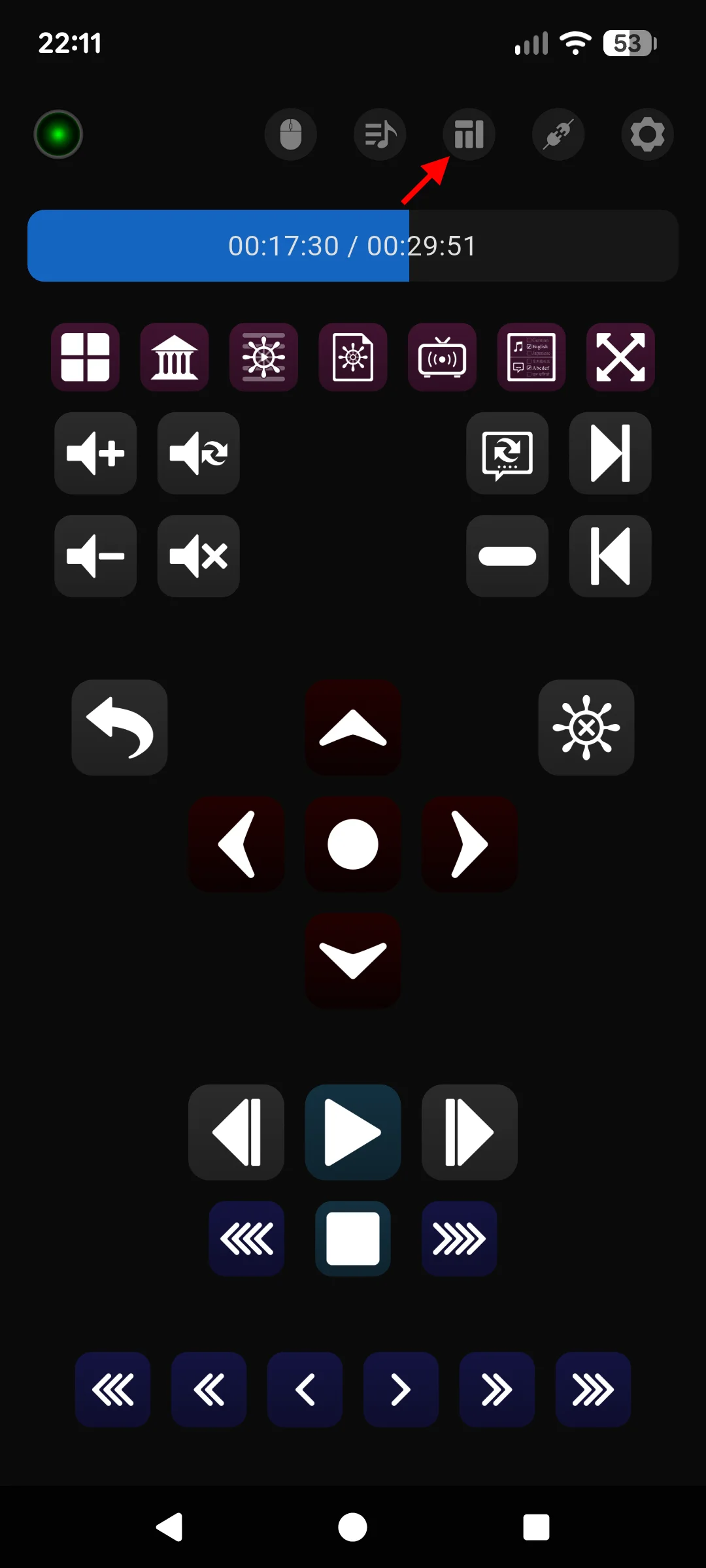
This opens the Layout Editor where you can make changes to your rows and buttons:
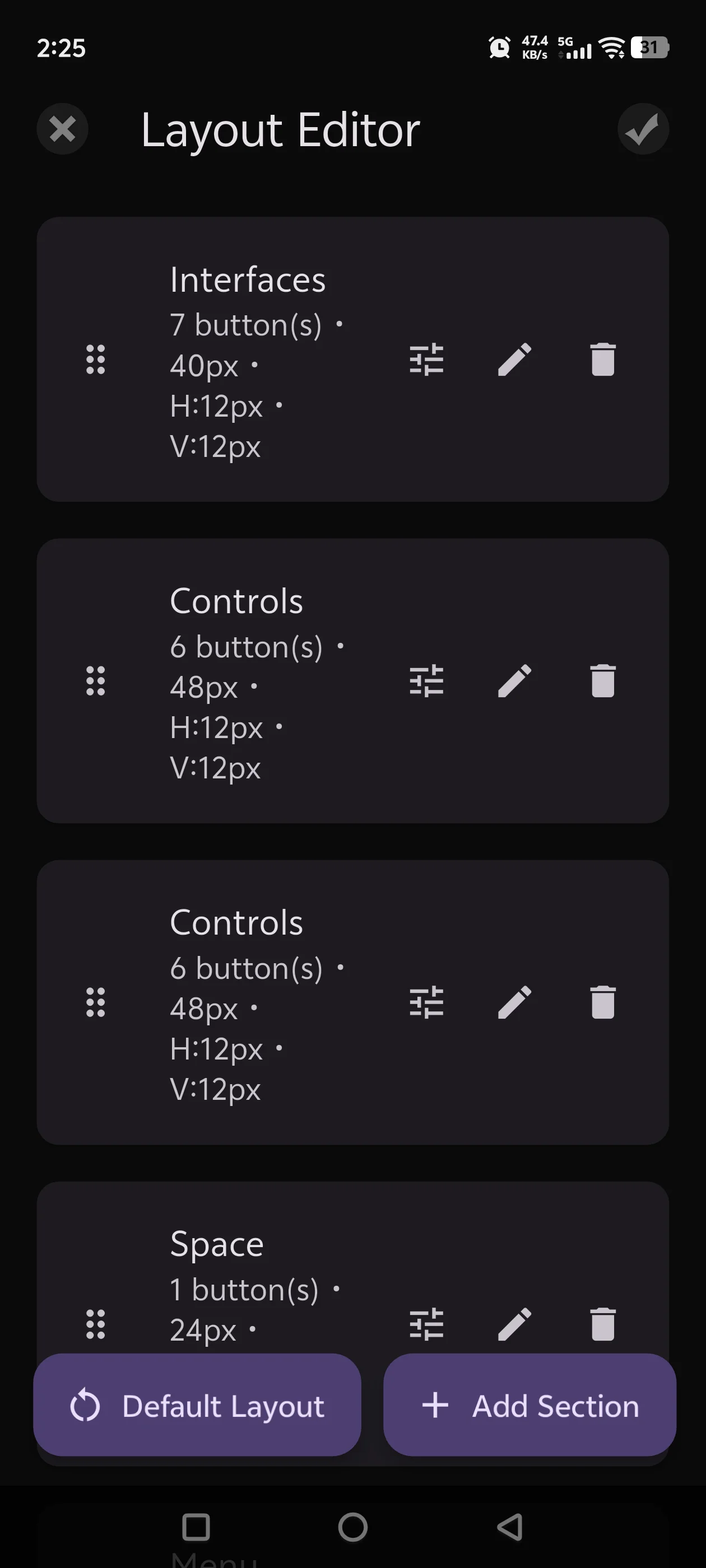
Pressing the pencil icon opens the button row editor which lets you pick specific Zoom Player functions:
Tapping the button list expands/contracts the list to allow you to reposition buttons, change a button's background color and remove buttons. Three button spacer widths are available at the bottom of the screen, tap to add.
Virtual Mouse Trackpad
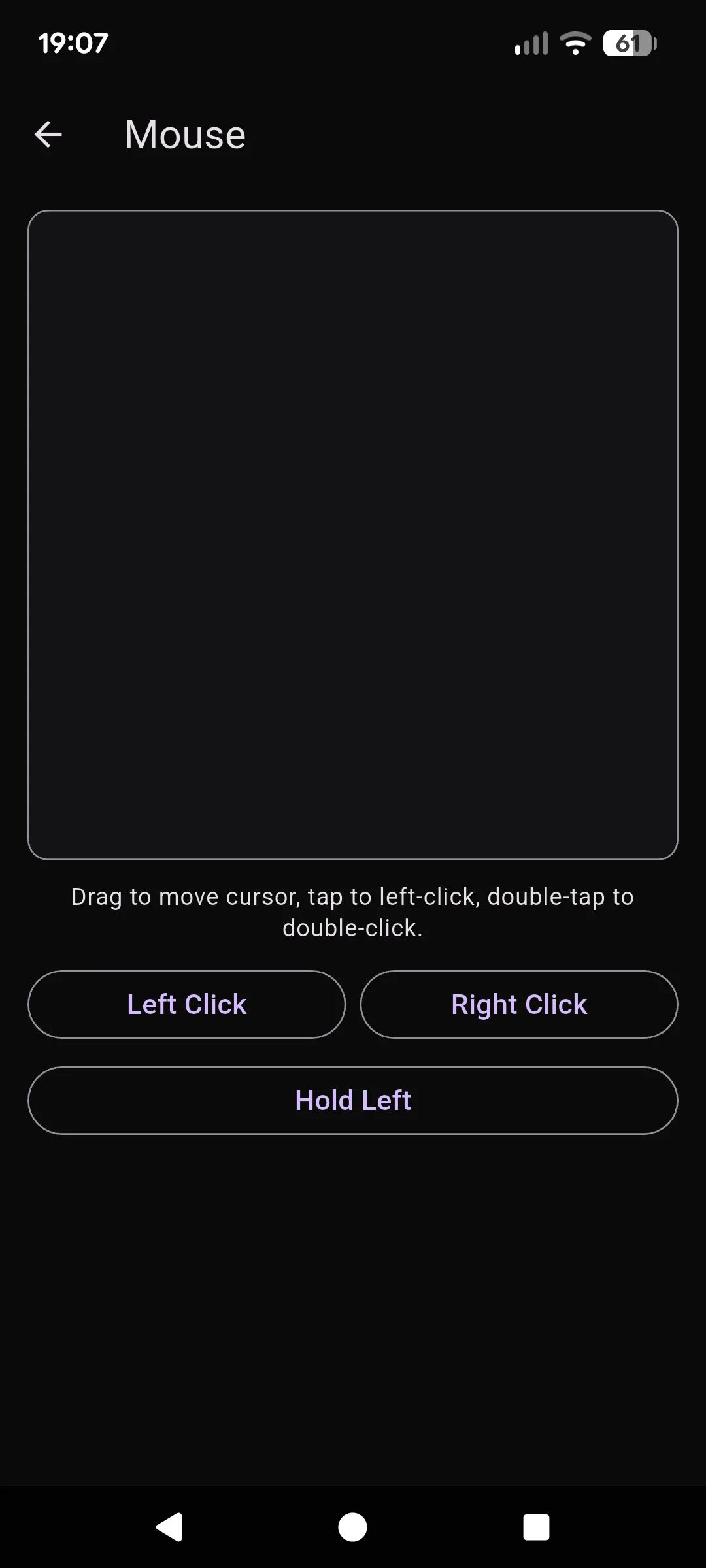
If you've chosen to enable remote mouse control, you can tap the mouse button on the top bar to use the Virtual Mouse Trackpad. Simple drag your finger to move the mouse cursor, tap to left-click or use the bottom buttons. The "Hold Left" button can be used to drag windows or scroll bars.
Playlist Control
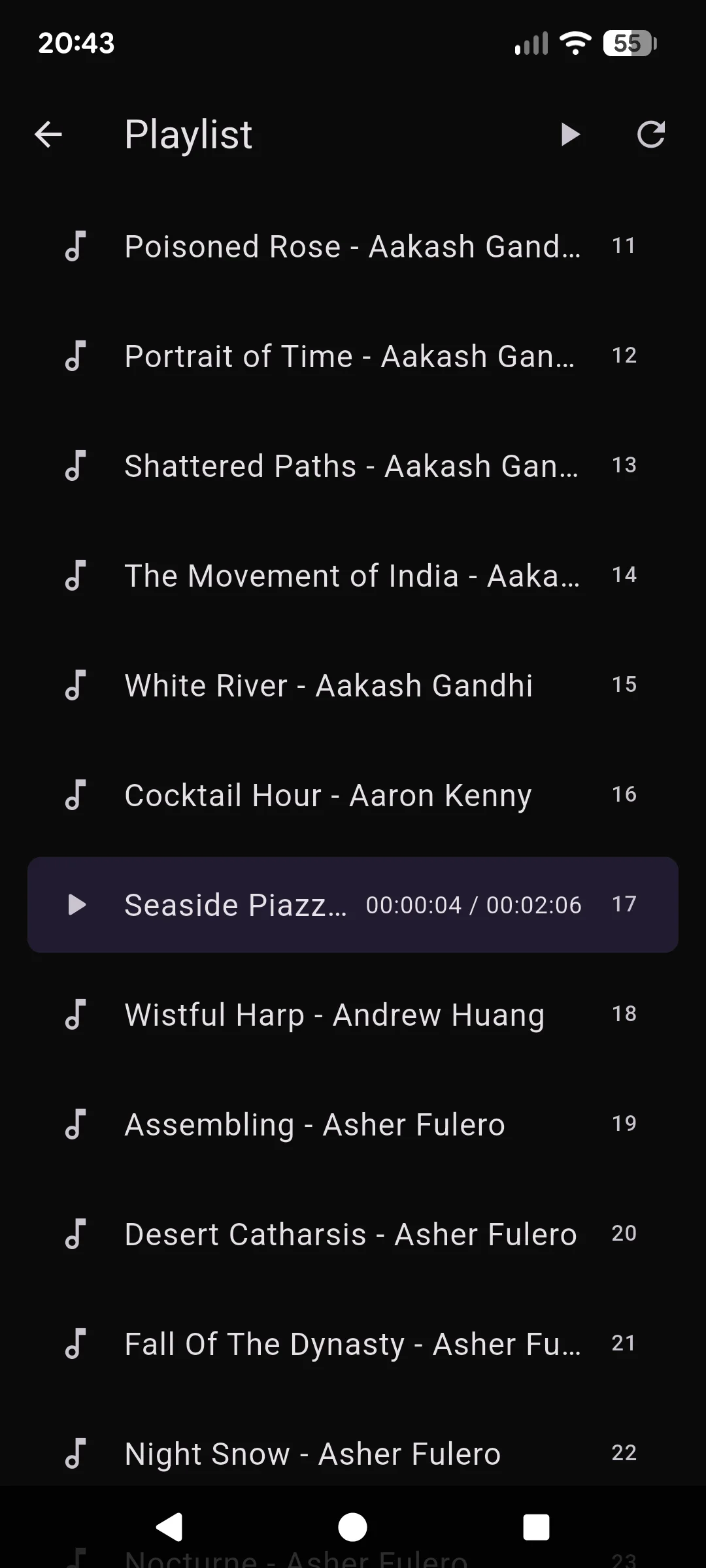
You can access the playlist page by tapping the playlist icon on the top bar area. The playlist page allows you to inspect which track is currently playing and which tracks are queued next. Double tap to play a new media track or use the "Refresh" button to re-load the playlist as-need.
Sharing from other apps
ZP Remote Neo can accept shares from other apps such as YouTube to relay the stream URL for playback in Zoom Player. When sharing from other apps, you will see two sharing options "Play" and "Queue". Play will start playback instantly, while "Queue" will add the shared URL to the end of Zoom Player's playlist.
Conclusion
ZP Remote Neo puts Zoom Player's full power in the palm of your hand. By taking a few minutes to enable the TCP/IP and dialing in your custom layout, you can transform your mobile device into the Zoom Player remote control.
Download ZP Remote Neo using Google's Play Store and take control of your Home Theater experience.