Buy Now
Products
  • Blog
  • What's new
  • Newsletter
  • Zoom Player
  • Zoom Player Awards
  • Zoom Player Press
Downloads
  • Zoom Player MAX
  • Zoom Player STREAM
  • Zoom Player Remote
  • Zoom Player Skins
  • Zoom Player MAX Beta
  • Zoom Player STREAM Beta
  • Backgrounds
  • Graphic Assets
  • Other Downloads
Support
  • Zoom Player Help
  • Zoom Player Interface
  • Zoom Player on Tablets
  • Video Tutorials
  • Support on Reddit
  • Customer Support
Guides
  • SETUParrow
    • Formats & Decoders
    • Options & Settings
    • Media Library Basics
    • Media Library Scraping
    • Video Streaming
    • Skin Selection
    • Streaming
    • Presets
    • Calibration Patterns
    • Articles
    • Resources
    • FAQ
  • CONTROLarrow
    • Keyboard Shortcuts
    • Remote Control
    • Command Line
    • Control API
    • Zoom Player Functions
  • THE USER INTERFACEarrow
    • Screenshots
    • Fullscreen Navigation
    • The Control Bar
    • The Playlist
    • The Equalizer
    • Video Streaming
    • Chapters & Bookmarks
    • The Scheduler
    • Dynamic Video Editing
Contact
  • Customer Support
  • Licensing & Marketing
  • Business Development
  • Affiliate Signup
  • Client Showcase
  • About Inmatrix
  • Buy Now                           
  • Productsarrow
    • Blog
    • What's new
    • Newsletter
    • Zoom Player
    • Zoom Player Awards
    • Zoom Player Press
  • Downloadsarrow
    • Zoom Player MAX
    • Zoom Player STREAM
    • Zoom Player Remote
    • Zoom Player Skins
    • Zoom Player MAX Beta
    • Zoom Player STREAM Beta
    • Backgrounds
    • Graphic Assets
    • Other Downloads
  • Supportarrow
    • Zoom Player Help
    • Zoom Player Interface
    • Zoom Player on Tablets
    • Video Tutorials
    • Support on Reddit
    • Customer Support
  • Guidesarrow
    • FAQ
    • Articles
    • Screenshots
    • Backgrounds
    • Fullscreen Navigation
    • Playlist
    • Equalizer
    • Control Bar
    • Skin Selection
    • Media Library Basics
    • Media Library Scraping
    • Scheduler
    • Remote Control
    • Command Line
    • Functions
    • Control API
    • Options & Settings
    • Keyboard Shortcuts
    • Formats & Decoders
    • Chapters & Bookmarks
    • Dynamic Video Editing
    • Presets
    • Calibration Patterns
    • Streaming
    • Resources
    • Graphic Assets
  • Contactarrow
    • Customer Support
    • Licensing & Marketing
    • Business Development
    • Affiliate Signup
    • Client Showcase
    • About Inmatrix

How to Set Up Media Server Browsing in Zoom Player
How to Set Up Media Server Browsing in Zoom Player

Published April 1st, 2026

Integrating Plex, Emby, and Jellyfin

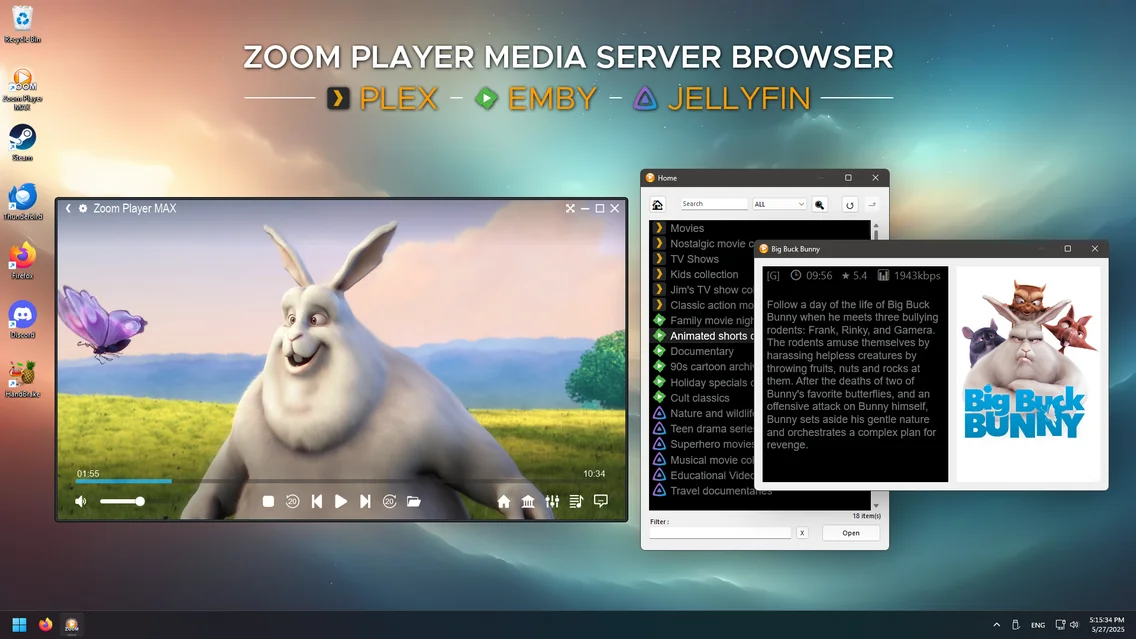
Integrating your favorite media servers like Plex, Emby or Jellyfin directly into Zoom Player allows you to combine a powerful local media player with the convenience of centralized streaming libraries.

In this guide I will show you how to set up, browse and explore your media servers in both Windowed and Home Theater (HTPC) modes.

Setting up in Windowed mode

Windowed mode offers the most flexibility for desktop users, allowing you to manage your media library alongside other applications.

Connecting Your Media Server

Before browsing your content, you must link your media server to Zoom Player.

  1. Open the Zoom Player Options (Ctrl+O) and ensure you are in Advanced Mode.

  2. Navigate to Playback > Media Server (plex & more).

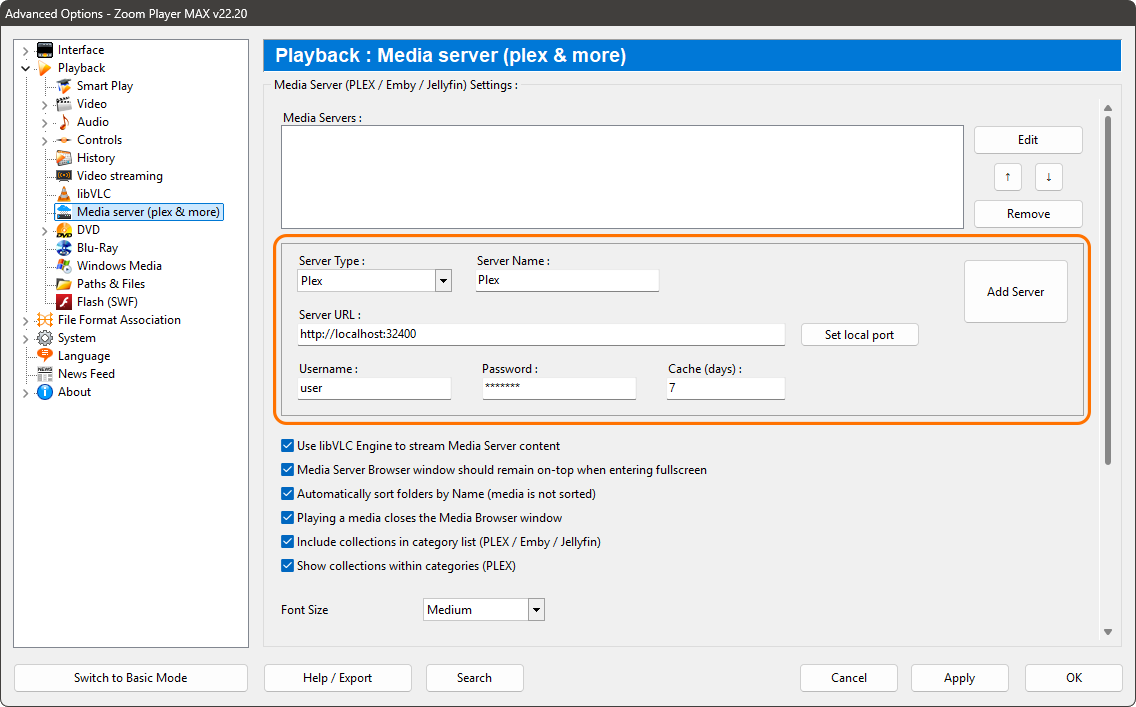
  3. Zoom Player Options - Media Server
  4. Select your Server Type (Plex, Emby or Jellyfin).

  5. Zoom Player Options - Media Server Type
  6. Input the Server name, Server URL (e.g., http://localhost:32400 for Plex), Username and Password and click the "Add Server" button.

  7. Zoom Player Options - Media Server Details
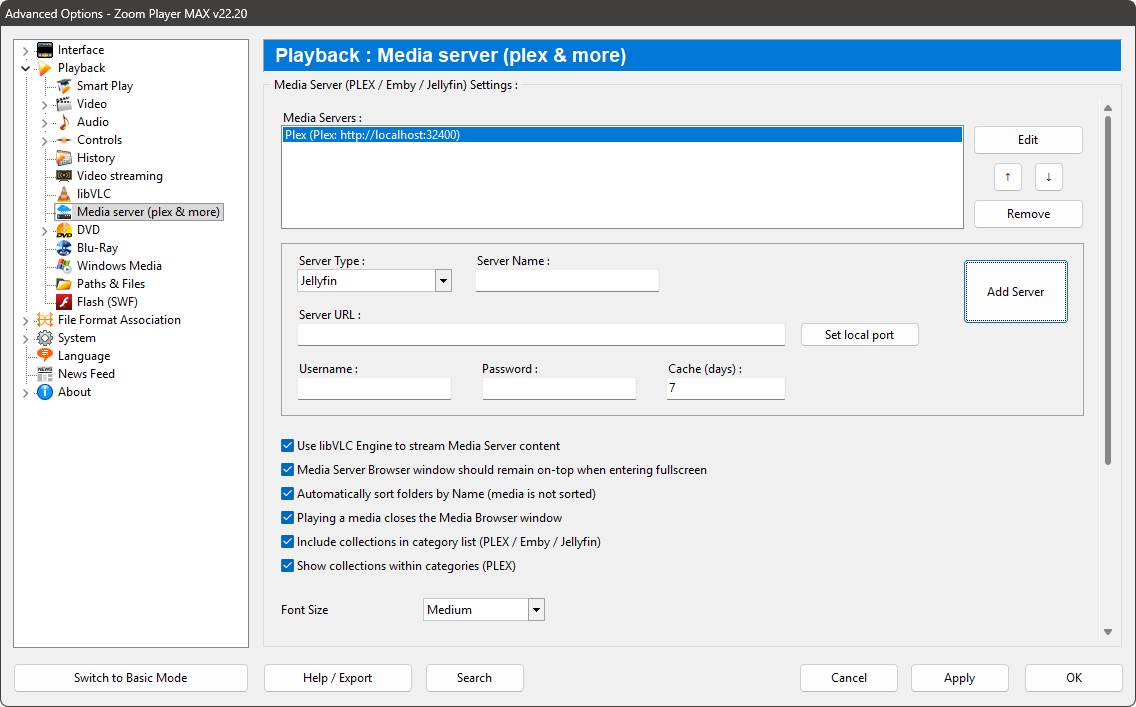
  8. The server which you added will be listed in the Media Servers list. You can click the "Edit" button if you want to update any details.
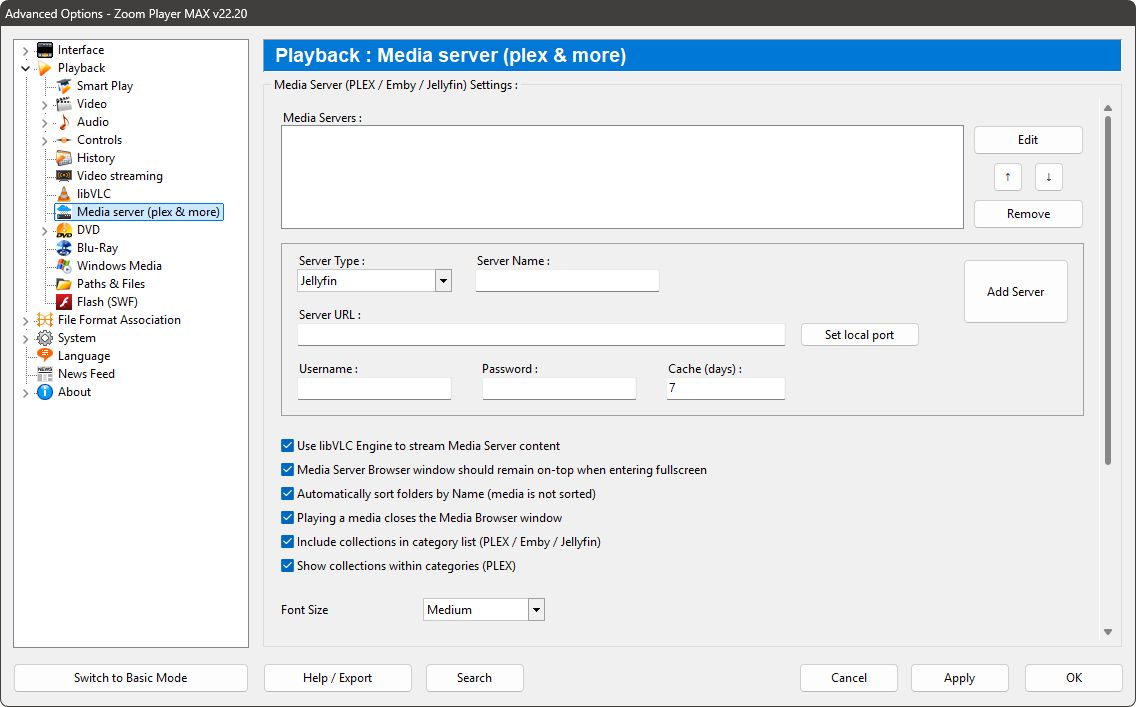
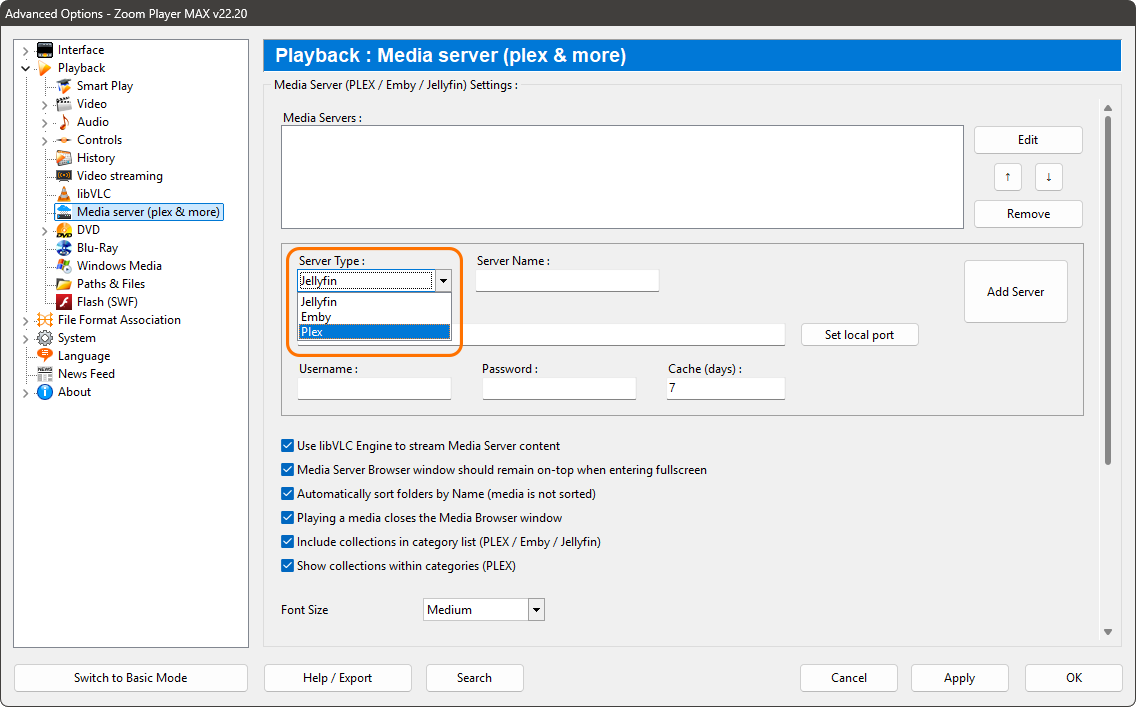
  9. Zoom Player Options - Media Server Add Server

The Media Server Browser

The Media Server Browser (Shift+Y) is the fastest way to access your content on your media server. It provides a clean interface where all your connected Plex, Emby, and Jellyfin media servers are listed in one place.

Here is a summery of features of the Media Server Browser.

Media Server Icons:

Each category is prefixed with an icon representing the server type (Plex, Emby and Jellyfin).
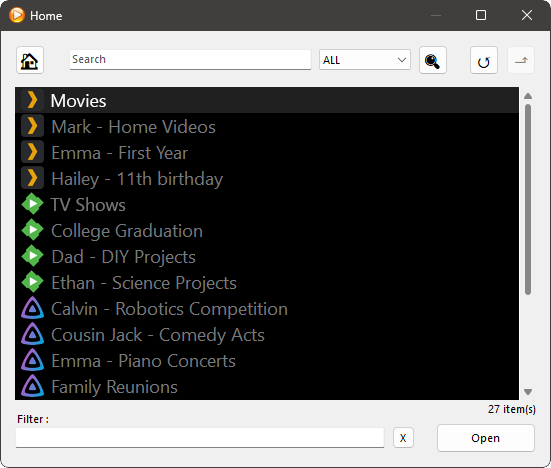
Zoom Player - Media server browser

Expanding the category:

Double clicking on a category will expand it to reveal your media files, e.g. Double clicking the "Movies" category will expand and show the list of all movies in that category.
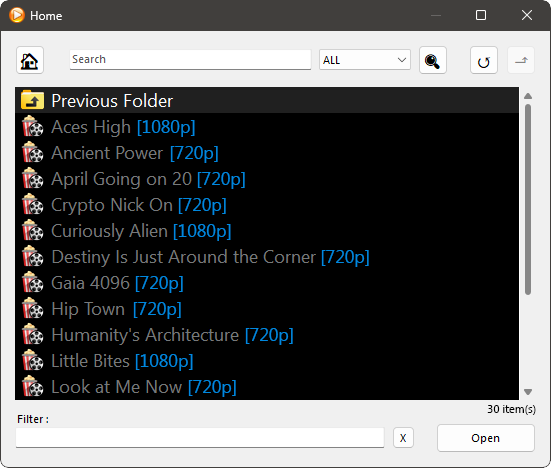
Zoom Player - Media server browser expanded

Search & Filters:

Use the Search bar at the top or the Filter box at the bottom to find titles instantly.
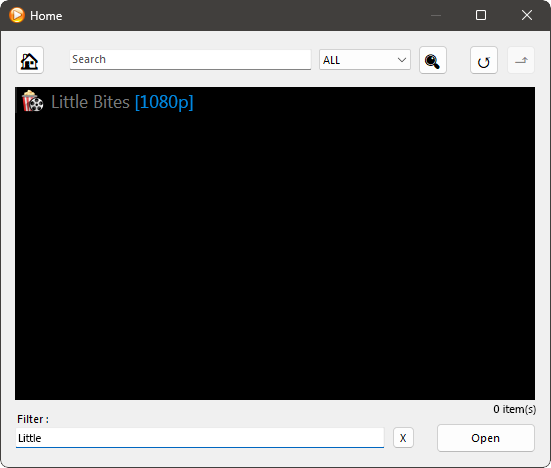
Zoom Player - Media server browser filter

Media Information

Right-clicking any media entry will show the Media Information window which includes the media title's metadata, including MPAA rating, run time, rating, bitrate, synopsis and the movie poster.
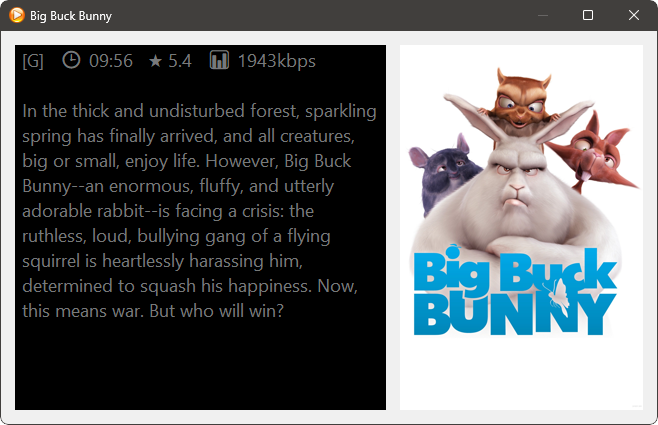
Zoom Player - Media Server Browser Media Information

Browsing in Home Theater Mode (HTPC)

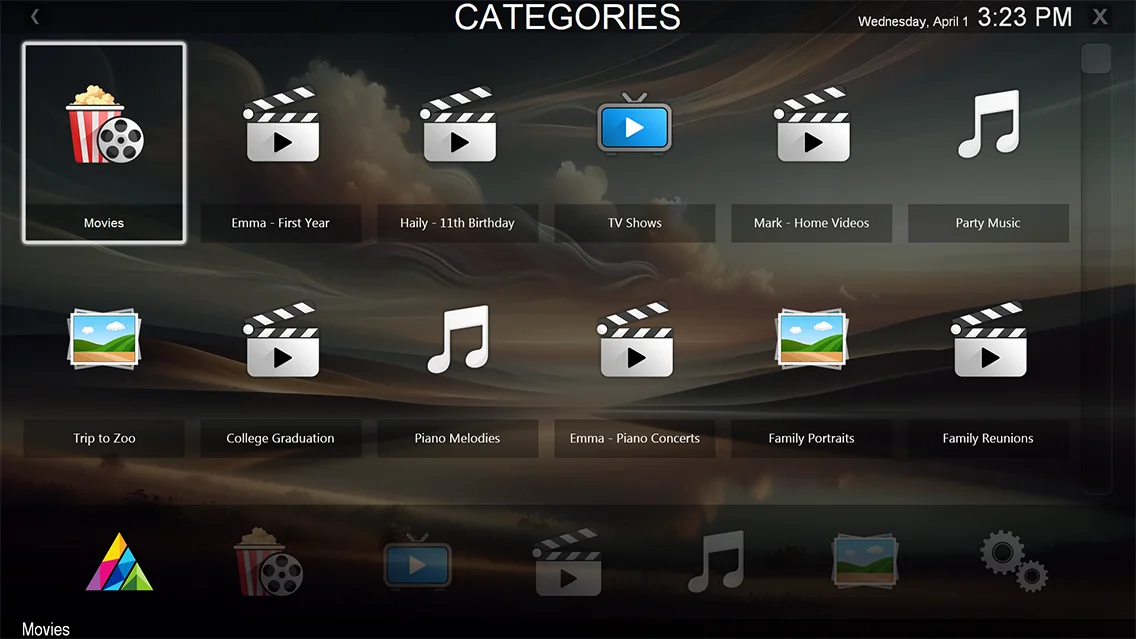
If you prefer a fullscreen, remote-friendly interface for your TV or monitor, You can browse and view your media server content in fullscreen inside your Media Library.

To view your media server categories within the fullscreen Home Theater interface, you need to add them as a dedicated category.

Adding the Media Server Category:

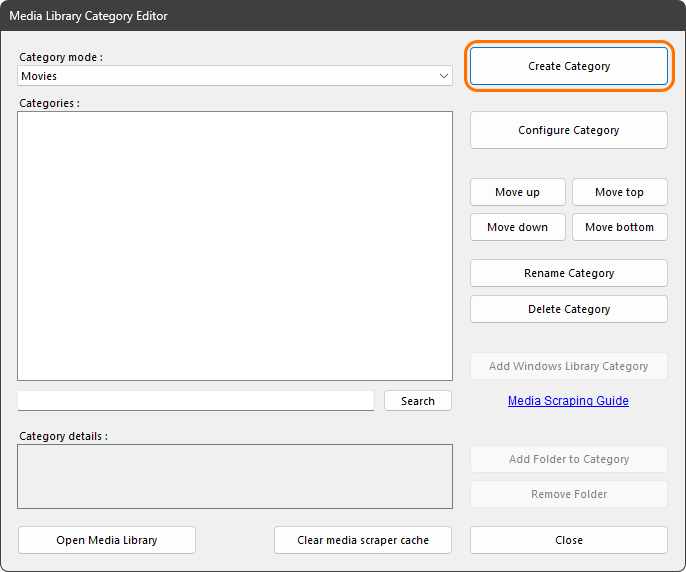
  1. Open the Media Library Category Editor (Shift+M) and click the Create Category button

  2. Zoom Player - Media Library Category Editor
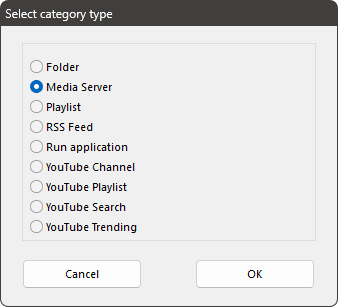
  3. In the "Select category type" dialog, choose "Media Server" and click OK.
  4. Zoom Player - Select Category
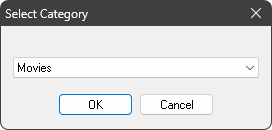
  5. Select your server category from the list e.g. Movies.
  6. Zoom Player - Select Category
  7. Once created, you can access the category in the Media Library Categories Home Theater Interface.
  8. Zoom Player Home Theater Interface - Media Library Categories

Conclusion

Whether you’re a power user managing a massive local collection or a casual viewer streaming from a remote server, Zoom Player’s media server integration offers the best of both worlds. By following these steps, you’ve turned your player into a single hub for all your media. It combines high-quality playback with a clean, organized look.


Attribution • Privacy Policy • Terms of Usage
Discord Facebook Youtube Reddit