
-
Options & Settings
-
Keyboard Shortcuts
-
User interface

-
Media Library
-
Command & Control
-
Formats & Decoders
-
Chapters & Bookmarks
-
Dynamic Video Editing
-
Presets
-
Calibration Patterns
-
Streaming
-
Resources
Media Library configuration
To configure the media library, use the Shift+"M" keyboard shortcut to open the media library's category editor or access the category editor through the right-click menu under the "Interfaces" sub-menu.
Category Editor : Quick Setup
- Click the "Create Category" button
- Select category type (Movies / TV Shows / Videos / Audio / Pictures / Executable)
- Select category source (Folder, Media Server (PLEX/Emby/Jellyfin), YouTube, etc.)
- Provide additional information as needed (e.g. category name, browse for a folder, etc.)
- If the category is folder based, you can pick additional folders to include in the category using the "Add folder to category" button
- Double-clicking a category opens the category in the media library
Media Library Plugins
Zoom Player supports a plugin interface to extend media sources. For example, Zoom Player ships with a series of YouTube (Channel/Trending/Search/Playlist), RSS feed reader and Playlist plugins. To extend Zoom Player by writing your own media source plugin, check out the GitHub source code repository for Zoom Player plugins and tools.
Category Configuration
Pressing the "Configure Category" button opens a category's configuration dialog, providing additional control on how the media in the category is scraped and presented.
Category source type
When the category source type is something other than a folder, pressing the "Configure" button allows you to configure the plugin.
Category Refresh
Some plugins (e.g. YouTube/RSS feed) support a Refresh action. Using the refresh action automatically restores the original category name and downloads the latest thumbnail.
JukeBox Mode
When JukeBox mode is enabled, and the category's content is setup in the right format, a movie's backdrop, poster and metadata (title, overview, cast, etc) are displayed in fullscreen when opening a folder containing the movie's media files.
Thumbnail view (otherwise default to list view)
Present the media as a list of thumbnail. By disabling this setting, the media is presented as a list of media names (file names or titles).
Crop thumbnails to fit the maximum display area
When enabled, the thumbnail is cropped to fill the entire thumbnail display area (no borders).
Do not display the media's position/duration on top of thumbnails
Enabling this setting stops the media's position/duration from displaying on top of thumbnails.
Do not display a media format (audio/video/picture) icon on top of thumbnails
Enabling this setting stops the media format icon from displaying on top of thumbnails.
Switch to TV JukeBox list view without having the parent folder scraped first
When enabled, TV JukeBox mode is enabled without requiring the parent folder scraped first (recommended).
Use a video frame as thumbnail if metadata scrapers fail
When online scraping fails to find a poster or backdrop image for the video, enabling this setting tries to extract a frame from the video file.
Draw thumbnails with a metadata derived title (instead of using the file name)
When the scraped metadata contains a title and possibly season/episode numbers, use the metadata information as the thumbnail's text instead of using the file name.
Draw background folder icon on folders containing a thumbnail
When enabled, a folder icon is drawn behind the thumbnail's image to make it clearer the thumbnail represents a folder.
Scrape for parent folder name when file name scraping using metadata scrapers fails
When scraping a media file and the media file online scraping did not return any data, try using the parent folder's name as a secondary search.
Scrape folder thumbnails by using the name of the first video file within the folder instead of the folder name
When enabled, folder thumbnails are scraped using the name of the first video file within the folder instead of the folder name.
Scrape using media derived title (instead of file name)
This setting controls whether scraping is done based on the media's file name or the media title obtained from other sources.
Create folder thumbnails from first media file within the folder (if scraping is disabled or fails)
When online scraping is disabled or fails to find any data based on the folder's name, try scraping using the first media file found within the folder.
Re-scrape folder thumbnail when the folder's modified time-stamp changes
With this setting enabled, if the windows file system 'modified' time-stamp for a scraped folder changes, the folder is automatically re-scraped. Note that windows changes the 'modified' time-stamp on a folder when changing the folder's first level content.
(changing the content of a sub-folder within that folder may not update the parent folder's 'modified' time-stamp.
Do not use MediaInfo.dll to extract file metadata
On some systems, MediaInfo.dll metadata extraction can be time consuming, enabling this setting prevents Zoom Player from using use MediaInfo.dll to extract metadata from files such as file format, codec, audio channels, etc. The metadata extracted by MediaInfo.dll is used to display information on the media within the media library.
Disable all scraping operations for this category
If this setting is enabled, no scraping will be performed on this category at all, not even extracting an image from the video file.
Metadata scrapers
Based on the category type, a metadata scraper plugin is selected automatically. In this area of the dialog, you can choose the type of content the plugin is set to search for, select which scraper plugins to use and choose whether to show scraping failure messages in the metadata display area within the media library.
Do not use scraped image as thumbnail
When enabled, Zoom Player will ignore any thumbnail downloaded using a scraping plugin and depending on other category settings, Zoom Player will try extracting a thumbnail from the video itself.
Aspect Ratio
You should choose a thumbnail's aspect ratio based on the type of content contained within the category. Note that when changing a thumbnail's aspect ratio, you will be prompted to reset the other thumbnail layout values to the Aspect Ratio's defaults which ensures consistent text sizes.
Columns
The number of thumbnail columns to display on screen.
Text-Box Lines
The number of text lines to display under the thumbnail.
Text-Box Height
The height of the text-box area in percentages based on the thumbnail's height. Note that the combination of "Text-Box Height" and "Text-Box Lines" control the font's size.
Thumb horizontal spacing
The horizontal spacing between thumbnails based on a percentage of the thumbnail's width.
Thumb vertical spacing
The vertical spacing between thumbnails based on a percentage of the thumbnail's height.
Custom category thumbnail
When the media library category display is set to thumbnail mode, the image specified here is used to represent the category instead of a generic icon.
Lock Category with a Password
Specify a password to prevent access to a category. Please note that you must exit a passworded category to lock access, leaving the category open or a media from the category playing will still keep content from the passworded category exposed.
Navigation in Thumb View mode
Using the keyboard or remote control
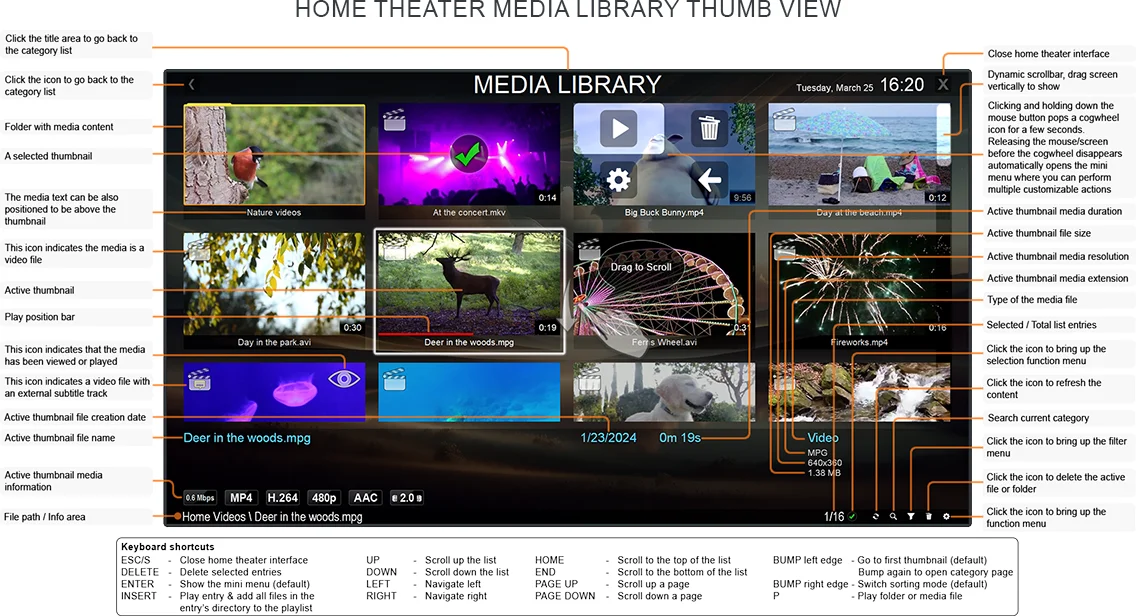
You can navigate through a folder by using the Arrows and the PgUp/PgDn/Home/End keys.
Pressing Left on the first thumbnail brings up the category list.
Pressing Enter opens the mini-menu with access to "Play (or open)", "Send to Recycle Bin", "Function Menu" and "Back to Category List" functionality.
Bumping against each side (e.g. pressing left while the active thumbnail is already the left most thumbnail) pops up a customizable function. By default "Go to first entry" when bumping Left and "Switch sorting mode" when bumping Right.
Bumping the first or last thumb rows shows a momentary glow effect to signify navigation has reached the start or end of the thumbnail display. Pressing up or down once again scrolls to the other end of the thumbnail display.
Press Delete to send the currently highlighted media or folder to the recycle bin (with prompt).
Using the Mouse or Touch [Screen/Tablet] device
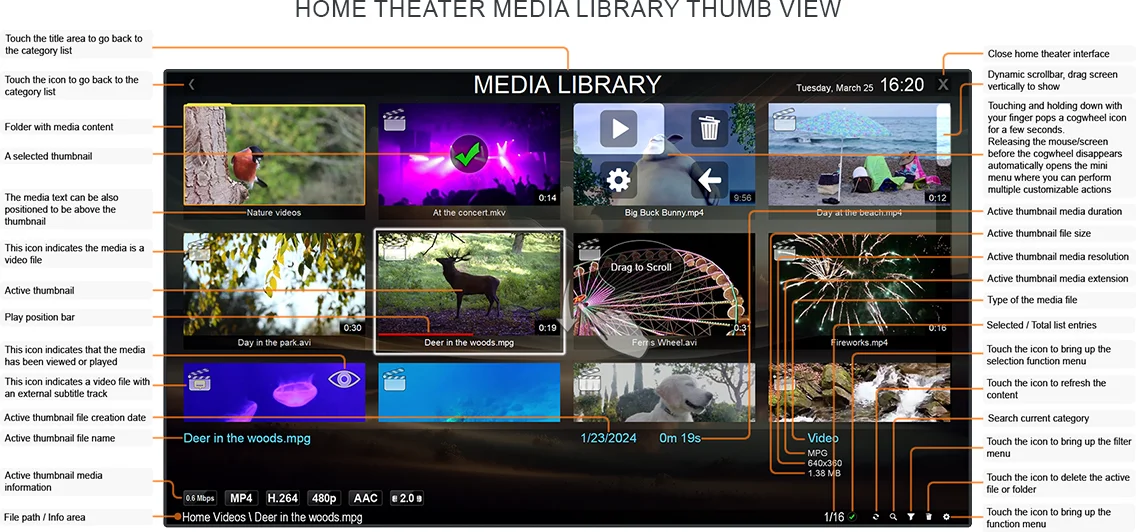
Drag and drop the list to scroll through the item. As soon as scrolling begins, a scroll bar fades-in on the right side of the screen to provide a faster scrolling option.
Single click a thumbnail to begin playback or to open a folder.
Hold a thumbnail for a couple of seconds for a cog-wheel icon to appear. Letting go of the thumbnail at this point opens the mini-menu with access to "Play (or open)", "Send to Recycle Bin", "Function Menu" and "Back to Category List" functionality. Holding the thumbnail a little longer hides the cog-wheel icon and disables the long-press action.
Press the media library icon or title text to go back to the Category List.
Navigation in List mode
Using the keyboard or remote control
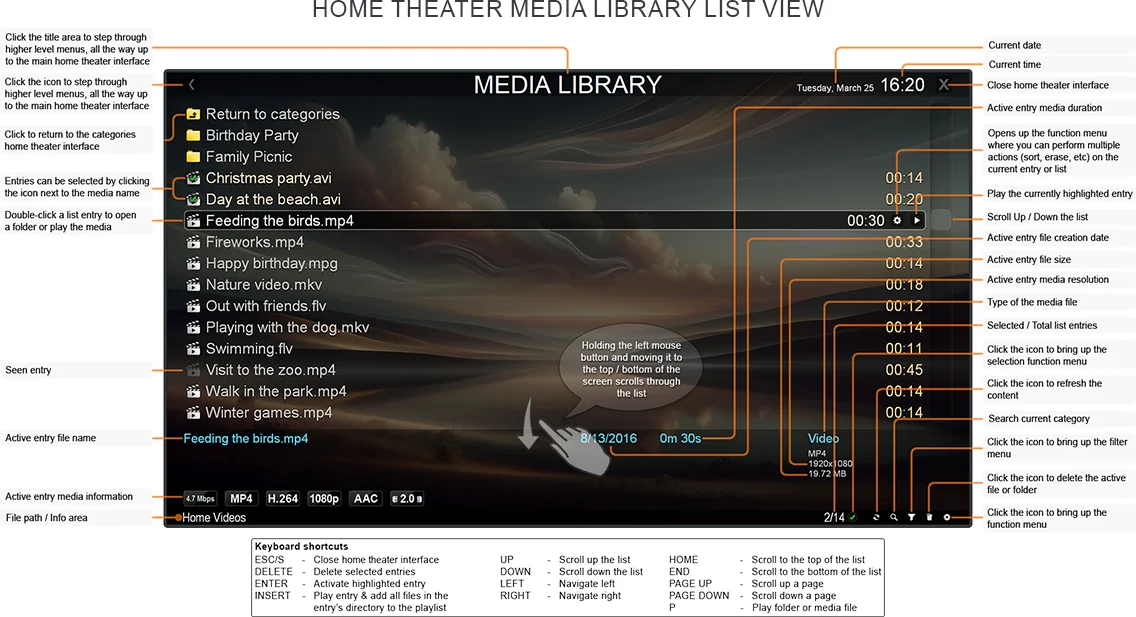
You can navigate through a folder by using the Up and Down Arrows and the PgUp/PgDn/Home/End keys.
Press Left to bring up the category list.
Press Right to bring up the function menu.
Press Enter to open a folder or play a media.
Press Delete to send the currently highlighted media or folder to the recycle bin (with prompt).
Using the Mouse or Touch [Screen/Tablet] device
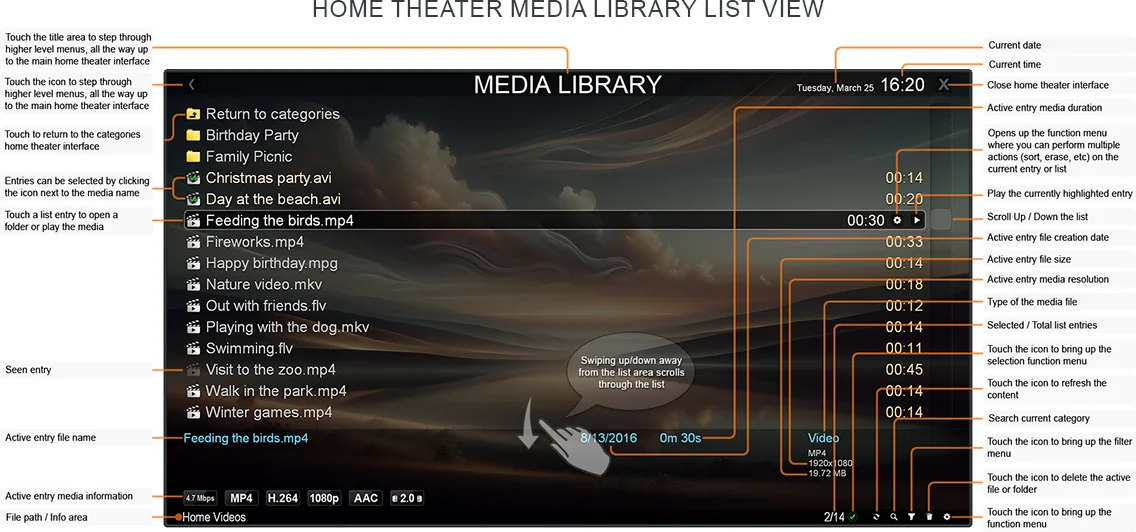
You can navigate by holding the left mouse button (or touching the device) and dragging Up/Down to scroll through the list or use the scroll bar on the right side of the screen.
Double click/touch a media to play.
Single click the function icons on the right side of the media name for additional functionality such as playing the file or opening the function menu.
Press the media library icon or title text to go back to the Category List.
The Metadata Editor
Information scraped on TV Show and Movie categories can be edited using the integrated Metadata Editor. You can access the metadata editor using several ways such as assigning it to the mini-menu, right-clicking a media and selecting the editor from the pop-up menu or through the media library's "functions" menu.
Edit multiple items
You can even select multiple items in the media library and then open the metadata editor to multi-edit the selected entries in one action (limited to specific fields).
Images
Clicking any images on the right-pane allows you to replace them (Poster, backdrop, still image, etc) with custom images.
Title
This is the displayed title. If one does not exist, Zoom Player uses the file name.
Sort Title
In some cases (such as a movie with sequels), you may want to use a custom title for sorting purposes that doesn't affect the displayed title.
Release Date
Used for sorting by "Release Date".
Rating
Used for sorting by "Rating".
Personal Rating
Used for sorting by "Personal Rating".
Last Play Date
Used for sorting by "Play Date".
Overview
The Movie/TV show description.
Personal Note
A note for yourself.
Active Genres
Used to specify one or more Genres which can later be used with the "Filter by Genre" feature.
Active Tags
Used to specify one or more Tags which can later be used with the "Filter by Tag" feature.
Active Collections
Used to specify one or more Collections which can later be used with the "Filter by Collection" feature.
Media Scanner
This entry on the category list is available to quickly add folders to existing categories or create brand new categories. It is not the recommended method for adding new categories.
To prevent Zoom Player from scanning certain folders, create a "zplayer_skipfolder.txt" file within a folder and this folder and any sub-folders within it will not be included in the media scanner listing. Please note that at present time, certain category configuration options and plugin based media sources (e.g. "YouTube") are not available through the media scanner and it is recommend that you use the media library category editor dialog when creating new categories.
Remove category folder(s)
This entry on the category list is available to quickly remove folders/entries from existing categories. When all folders/entries for a category are removed, the category itself is deleted.
The Function menu
The function menu is accessible through multiple routes detailed in the text above. Using the function menu, you can apply multiple actions on the selected media or change the way content is displayed for the entire category. Some of the functions are self explanatory, the more advanced functionality is explained here:
Quick Search
Quickly browse through long list by Browse only a subset of the list.
Select / Unselect
Pressing enter selects or removes the selection from the currently active item.
Select Multiple
Select multiple items based on their file types, seen status, etc.
Erase
Send the currently selected (or active media if nothing else is selected) media to the recycle bin.
Filter List
Filter the currently playing media items by Genre, Tag, Collection, etc.
Add to Playlist
Press enter to add the currently selected (or active media if nothing else is selected) media to the playlist. Pressing right opens the playlist navigation interface.
Add to Favorites
Add the currently highlighted or selected entries to the "Favorites" list for easy access later on.
Rename
Rename the currently active media.
Sort
Change the media's sorting order based on file name, media type, file date, file size, Play Date, Release Date, Star Rating, Remaining Play Time, etc.
Cut, Copy & Paste
Cut, Copy & Paste the media between different folders on your system.
New Folder
Create a new folder at this location.
Search for Subtitle
Uses the subtitle download plugin specified in the advanced options dialog to search for available subtitles. Please note that the OpenSubtitles.org plugin only works on files or movie category folders.
Settings
The settings sub-menu controls the look and feel of the current category, the layout of the category list, which media are listed, the audio & video renderers used and more.
Play all files in this folder
Plays every file in the current folder.
Mark as Seen
Mark the highlighted or selected media as seen. When using this feature, you'll be promoted whether to mark the media as seen right now or as archived. When marked as archived, the media will be listed at the end of the play history list.
Edit Metadata
Only applies to Movie and TV Show categories, opens the metadata editor for the currently selected media.
Scraping
Under some conditions (internet failure, bad database entry, etc) online database scraping may fail or return the wrong data. And at times you may want to prevent a folder from being scraped. Using the re-scrape media menu you can re-scrape selected thumbnails, all the thumbnails in the current folder, all the thumbnails in the current category or prevent a media or folder from being scraped (and clean any previous scraping data).
Go to top of list
Highlights the first entry in the current media list.
Start navigating
With the categories configured to your satisfaction, open the Media Library Navigator (Alt+"M" or click the "Open Media Library" button) and start to browse through your content.